
I had an interesting scenario come up recently while uplifting a client’s Conditional Access policies to more closely align with the persona-based framework. As most of you will know, you can’t make any significant CA policy changes without touching on the authentication flows for users, specifically as it relates to MFA and the registration of security info. Coming up with a decent onboarding experience is key, and couple that with advanced CA policies in a default-block approach and you’re bound to hit edge cases you need to work around. But this post isn’t about Conditional Access or advanced configuration, this one’s about a single feature that, in my experience, causes more confusion than it’s worth: the Microsoft Outlook Companion app, also known as Authenticator Lite and its role in MFA push notifications.
Table of Contents
- What Even Is the Companion App
- Why It’s a Problem
- The Problem With Just Turning It Off
- Prerequisites
- The Queries
- What to Do With This Information
What Even Is the Companion App?
Before we get into the problem, a quick explainer for those who haven’t come across it.
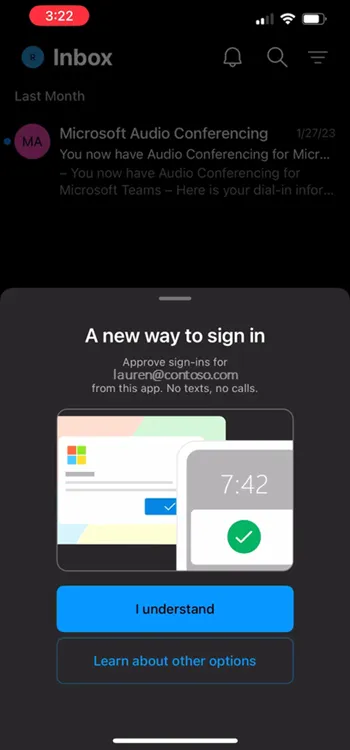
The Microsoft Outlook Companion app (Authenticator Lite) is a feature to the main Outlook mobile app. It can register itself as an MFA method, specifically for push notifications, meaning users can approve authentication requests directly from within Outlook rather than needing to open the Microsoft Authenticator app separately.
On the surface, that doesn’t sound unreasonable. One less app to deal with, right? The problem is that it creates a divergence in authentication flows across your user base, and that’s where things start to get messy.
Why It’s a Problem
The concept of MFA isn’t difficult, and the registration of MFA shouldn’t be either. But depending on a user’s technical confidence, some people do struggle, so ensuring the process is straightforward and repeatable for every user is important. Consistent process means consistent documentation, consistent support calls, and fewer “it looks different on my phone” conversations with your helpdesk.
In a world where we really should be pushing towards passkeys as the primary authentication method, the companion app makes even less sense to me. Even for organisations that default to push notifications (which will be most), the companion app creates differences in sign-in flows that can lead to user confusion, incorrect documentation, or support scenarios you hadn’t accounted for. Maybe someone in your IT team wrote up a registration guide and they’ve never encountered the companion app flow, suddenly half your users are following a guide that doesn’t match what’s on their screen.
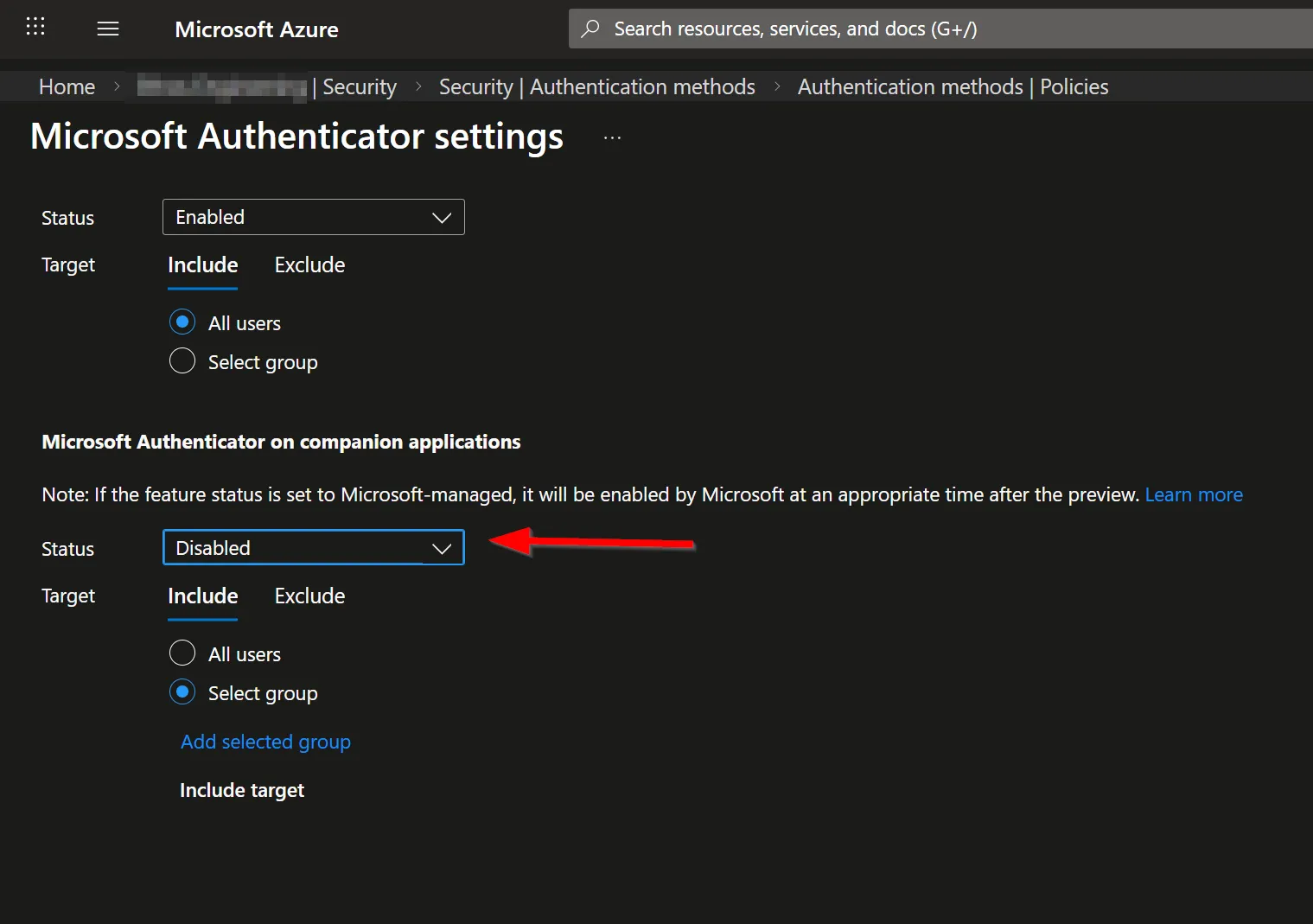
Either way, it’s a pain. My general recommendation is to disable the feature altogether and standardise on the Microsoft Authenticator app. Everyone follows the same steps, your documentation is accurate for every user, and crucially, you’re already set up for device-bound passkeys when the time comes.
The Problem With Just Turning It Off
Here’s the catch. If you’ve got an established user base and you simply disable the companion app, you’re going to cause authentication failures for anyone currently relying on it. That’s not a great look.
The frustrating part is that when you review the Authentication Methods User Registration report in Entra, the companion app shows up as simply “Microsoft Authenticator app (push notification)” — which is not helpful, because that label also covers users on the actual Authenticator app. So you can’t reliably use that report alone to distinguish between the two.

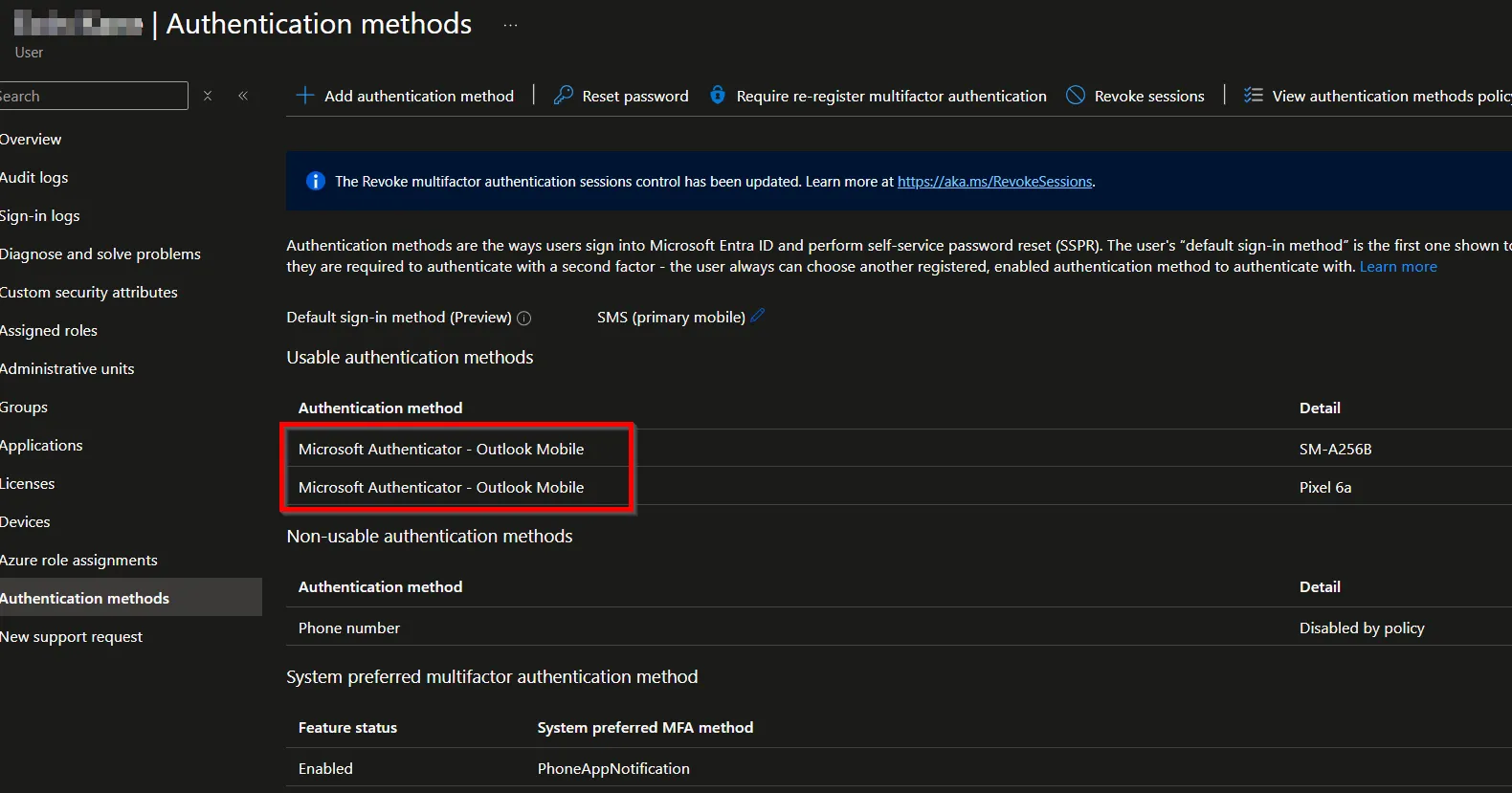
This is exactly what brought me to the approach I’m sharing here. The question becomes: how do you identify who is actively using the companion app, ensure only those users can continue using it while you migrate them, and then set up a controlled path to get them onto the full Authenticator app?
The answer is KQL and Log Analytics.
Prerequisites
Before you can run these queries, you’ll need:
- A Log Analytics workspace set up in Azure
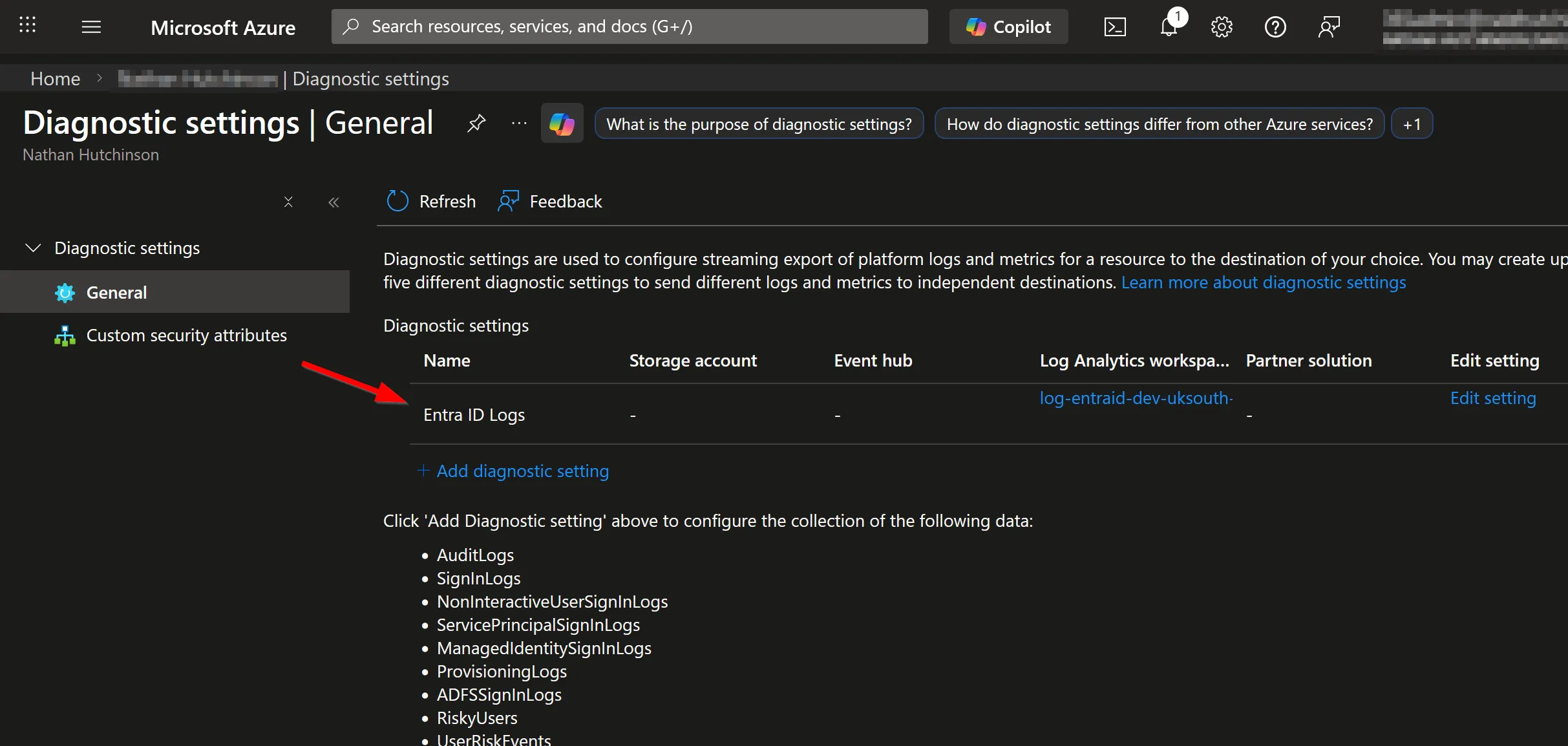
- Your Entra ID Sign-in logs exported to that workspace (via Diagnostic Settings in Entra)
- Enough data collected for the results to be meaningful — ideally a few weeks minimum, a month or more is better
The Queries
1. Get an Overview of All MFA Methods in Use
First, it’s worth running a broad query to see the full picture of MFA methods across your environment. This gives you the lay of the land before you start making changes:
// Bar chart showing all MFA types used
SigninLogs
| where AuthenticationRequirement == "multiFactorAuthentication"
| where ResultType == 0
| project AuthenticationDetails
| extend ['MFA Method'] = tostring(parse_json(AuthenticationDetails)[1].authenticationMethod)
| summarize Count=count() by ['MFA Method']
| where ['MFA Method'] != "Previously satisfied" and isnotempty(['MFA Method'])
| sort by Count desc
| render barchart with (title="Types of MFA Methods used")
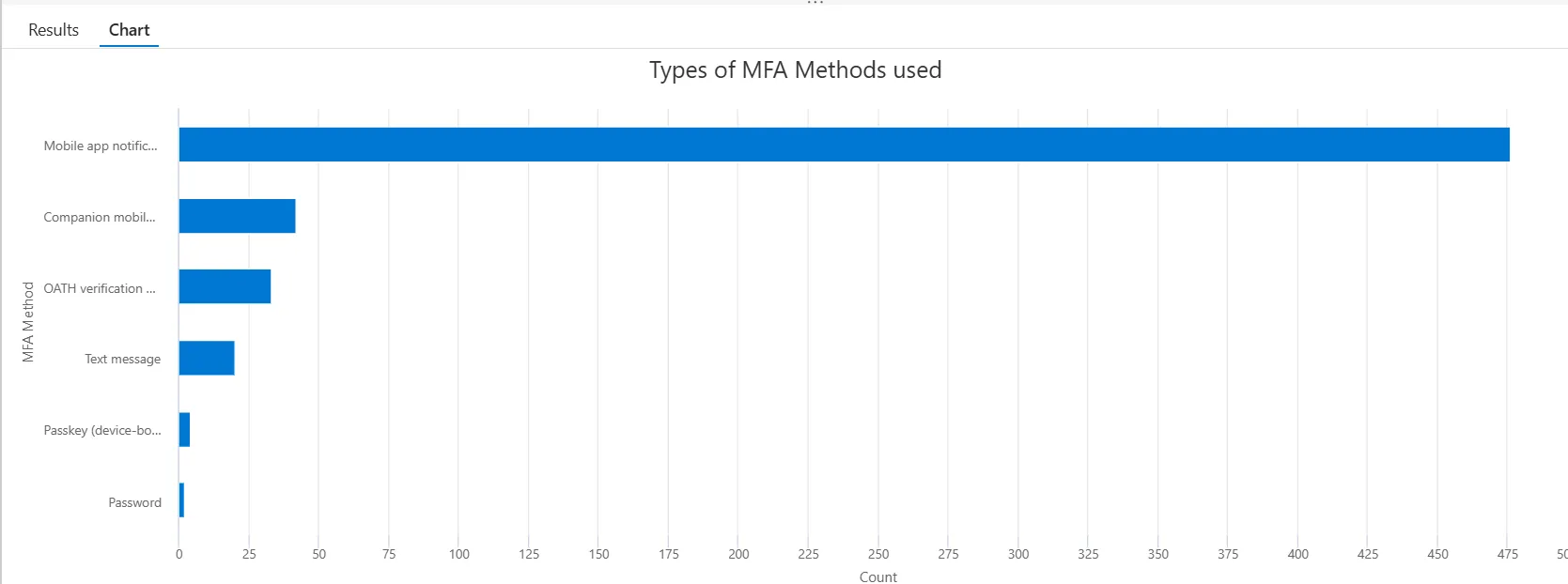
This will render a bar chart showing every method being used and how frequently. It’s a useful thing to screenshot and keep as a baseline before any changes.
2. List All Users Authenticating With the Companion App
Now for the important one, identifying exactly who is using the companion app, and how often:
// Lists all users authenticating with the Companion mobile app notification
SigninLogs
| where AuthenticationRequirement == "multiFactorAuthentication"
| where ResultType == 0
| project UserPrincipalName, AuthenticationDetails
| extend ['MFA Method'] = tostring(parse_json(AuthenticationDetails)[1].authenticationMethod)
| where ['MFA Method'] == "Companion mobile app notification"
| summarize SignInCount=count() by UserPrincipalName
| sort by SignInCount desc
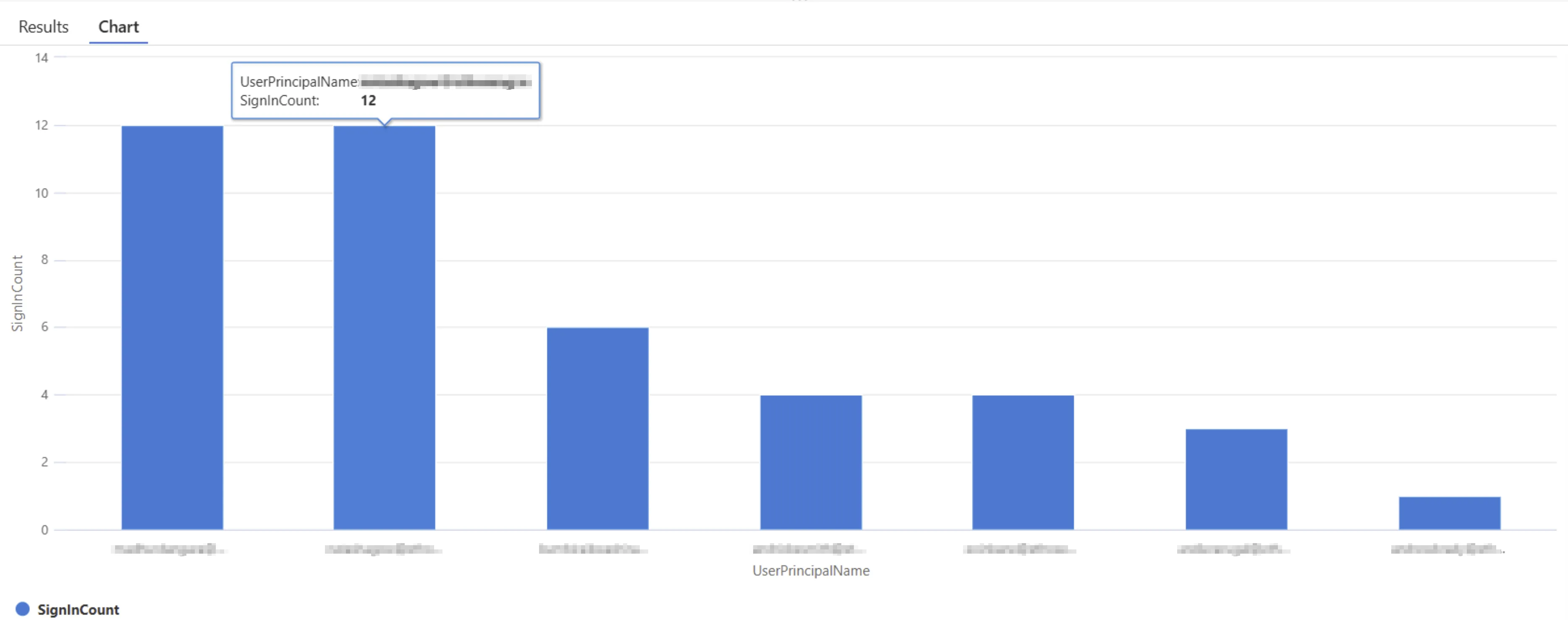
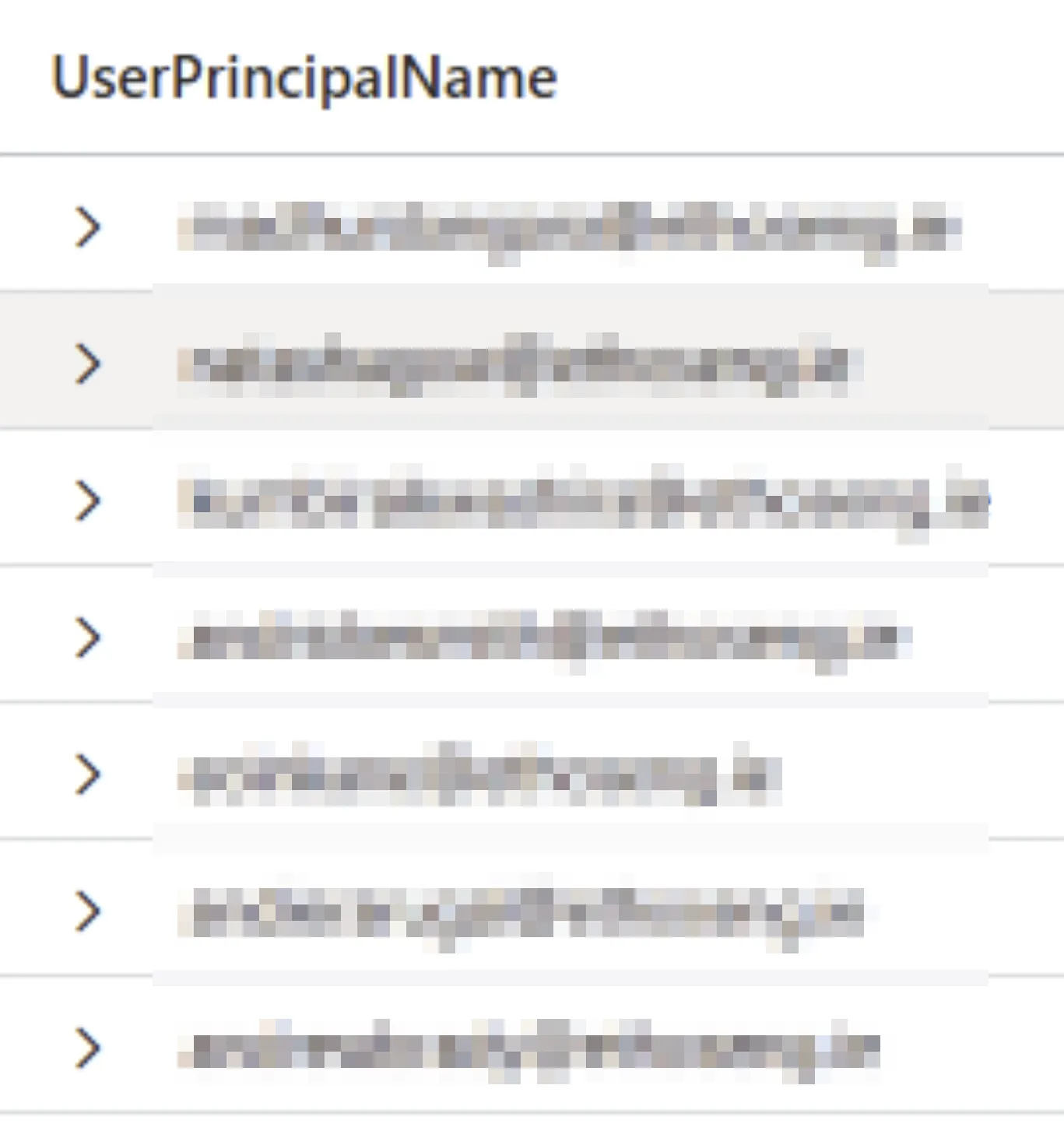
This gives you a clean list of UPNs and a sign-in count, ordered by most active users first. The sign-in count is useful context, someone with 200 sign-ins using the companion app is a higher priority to migrate than someone with 2.
What to Do With This Information
Once you’ve got your list, the approach I’d recommend is:
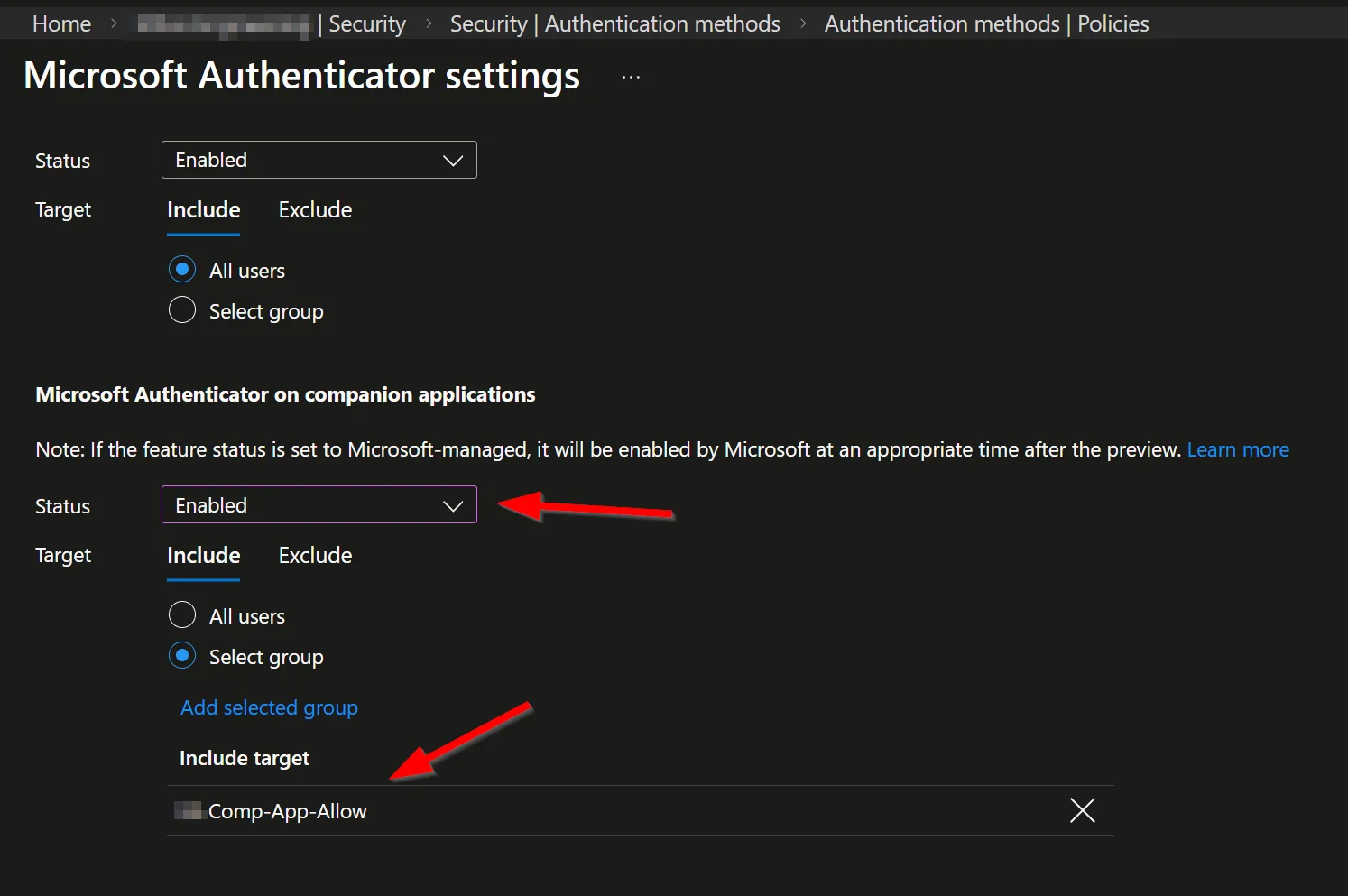
- Create a security group in Entra and add all identified companion app users to it
- Scope the companion app authentication method to that group only, this ensures any new users registering MFA going forward won’t be able to use it
- Communicate with the affected users and run a controlled migration, getting them set up on the Microsoft Authenticator app before removing them from the group
- Once the group is empty, disable the policy entirely
This way you’re not causing a sudden outage for anyone, you’ve got a clear audit trail of who needed migrating, and you can close it out cleanly.
It’s not the most glamorous piece of work, but it’s the kind of thing that pays dividends when you’re trying to standardise your authentication posture and move towards a passkey-first world. Getting the small stuff like this under control makes every subsequent change smoother, and your helpdesk will thank you for it.
As always, if you’ve got questions or a different approach you’re using, drop them in the comments.


