
Using Access Packages in Microsoft Entra ID to Automate Day One Access
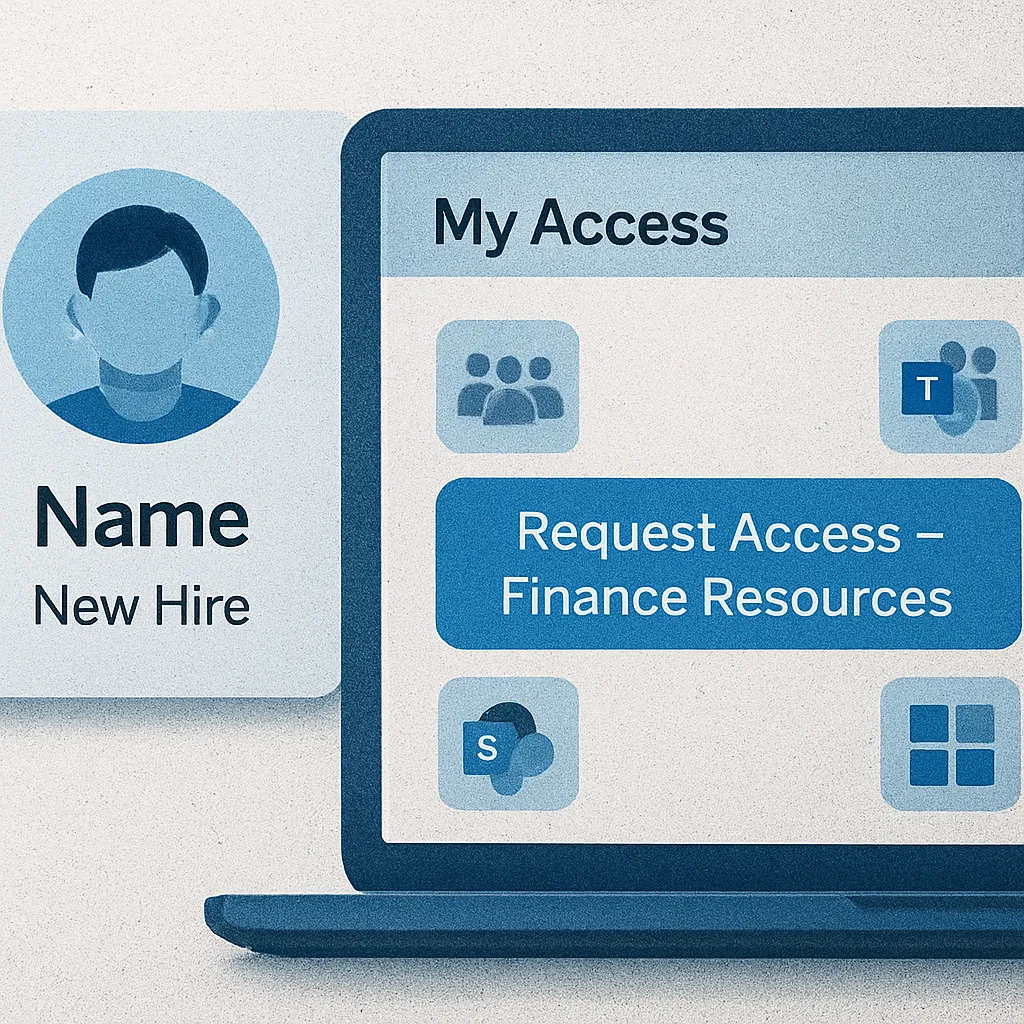
Table of Contents:
- What Are Access Packages?
- Before Building the Access Package: Key Groups to Set Up
- Catalogs: Organising Resources
- Adding Resources to the Catalog
- Building the Access Package: Finance Resources
- Results: A Governed, Automated Onboarding Model
- What’s Next
In this post, we’re kicking off a two-part series on how to streamline employee onboarding using Entitlement Management in Microsoft Entra ID. If you’ve ever dealt with manual access provisioning, endless IT tickets, or inconsistent onboarding experiences, then Access Packages might just become your new favourite tool.
In the video for this post, I walk through what Access Packages are, why they matter, and how to build one from scratch. If you prefer to watch your content, you can find the video here: Streamlining Employee Onboarding in Microsoft 365 using Entitlement Management - Pt 1
What Are Access Packages?
Access Packages are part of Entitlement Management in Entra ID. Think of them as bundles of access — permissions, Microsoft 365 Groups, Teams, SharePoint sites, and applications — all wrapped up and assignable through a governed, auditable workflow.
They help solve common onboarding challenges by:
- Reducing manual IT effort.
- Enforcing just-in-time access with approval workflows.
- Automatically expiring or reviewing access so permissions don’t linger.
- Supporting both employees and external users.
Whether you’re onboarding a new finance analyst, bringing in a contractor, or enabling access across departments, Access Packages ensure users get the right access at the right time — without opening the floodgates.
Before Building the Access Package: Key Groups to Set Up
Before jumping into the Access Package creation process, it’s helpful to configure some foundational security groups. In my scenario, I use three types of dynamic groups and one static group to handle different onboarding needs.
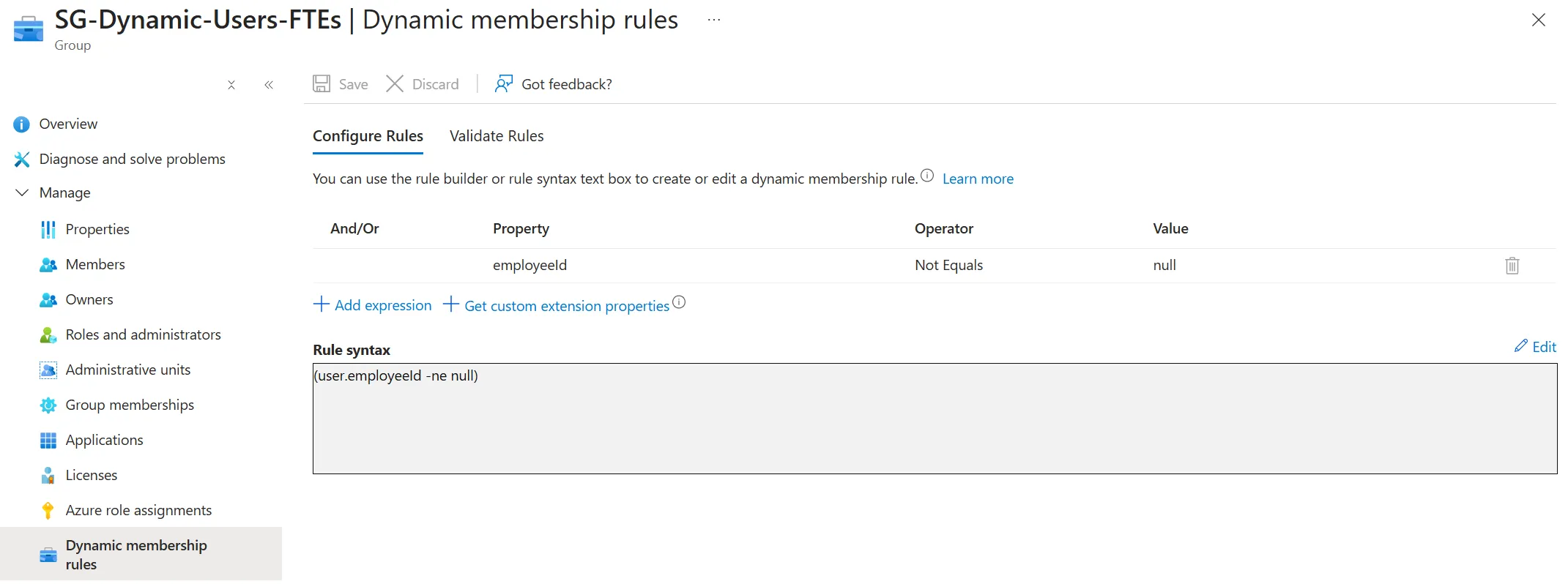
1. Dynamic Group: Users with an Employee ID
This group captures any user with a populated employeeID attribute — typically used for automatic licence assignment.
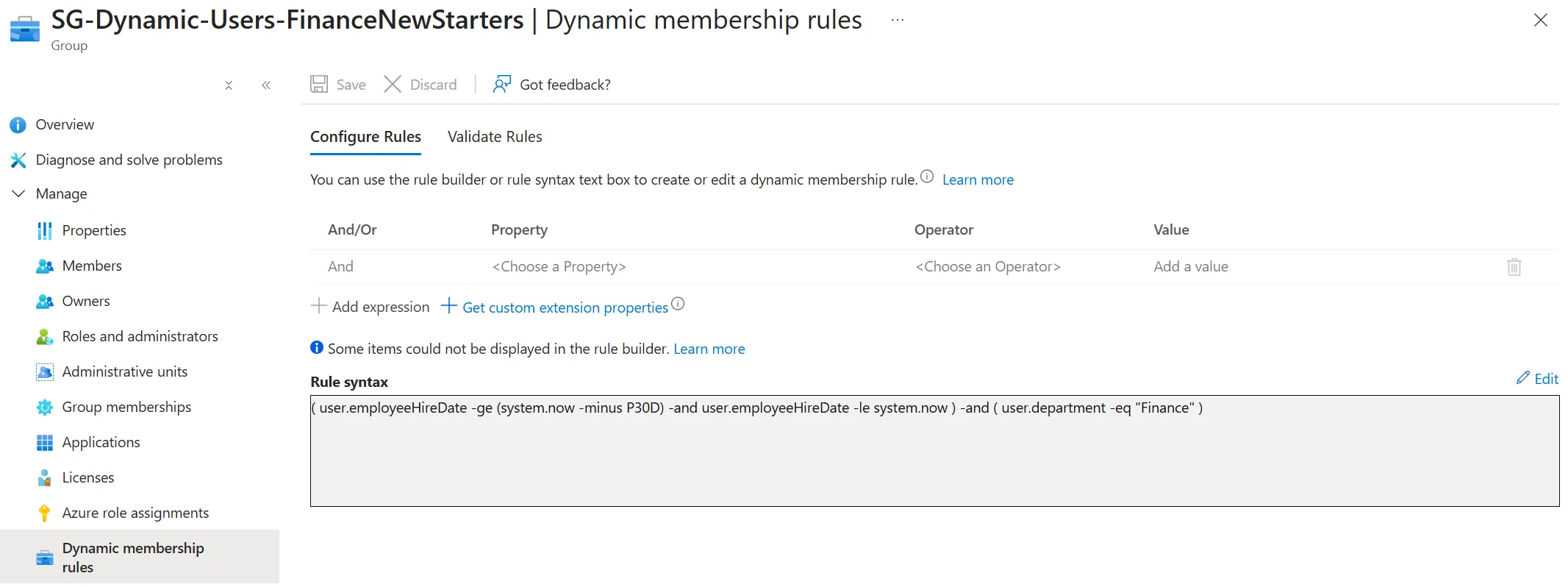
2. Dynamic Group: Finance New Starters
This group uses the user’s hire date to identify anyone hired within the last 30 days. As users pass the 30-day mark, they automatically exit the group.
Perfect for onboarding workflows, welcome emails, or temporary access.
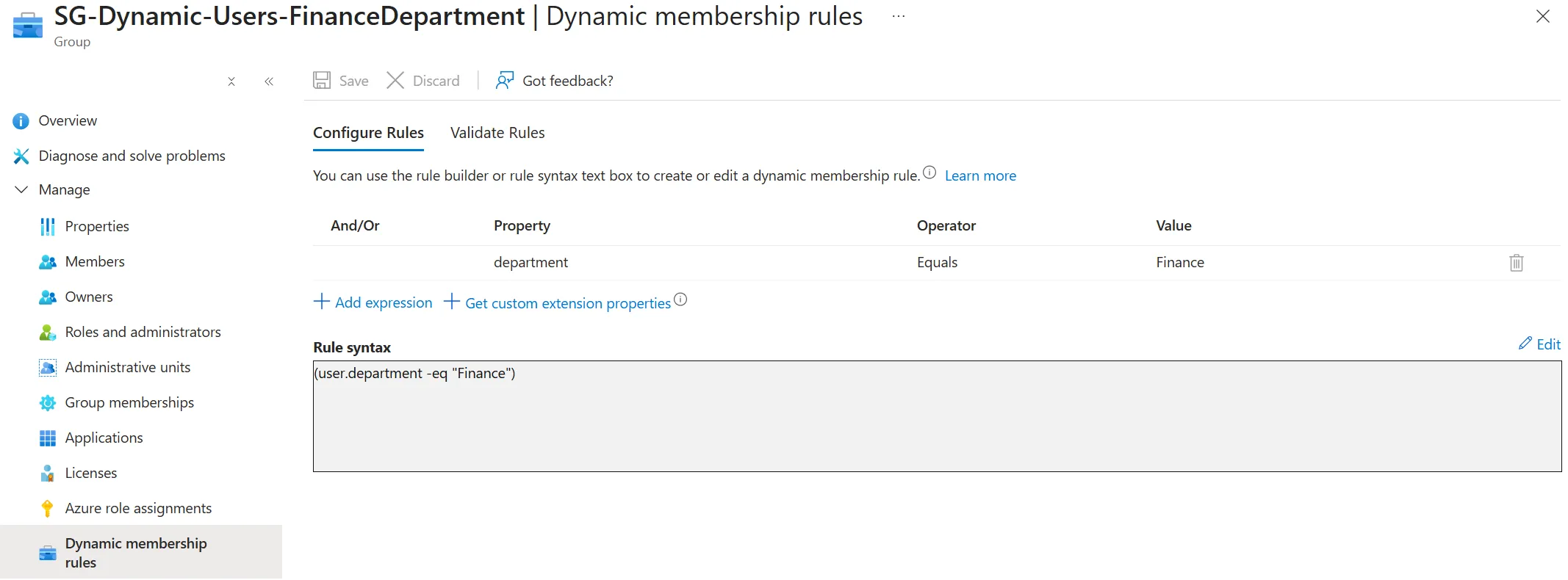
3. Dynamic Group: Finance Department
A simple department-based group capturing all users in Finance. You might use this for:
- Persona-based Conditional Access
- Automated application access
- Scoping Access Packages
4. Static Group: Third-Party App Access
This group simulates access to a fictional finance application. Adding this group as a resource in our Access Package lets us demonstrate how Access Packages can support external or custom apps.
Catalogs: Organising Your Resources
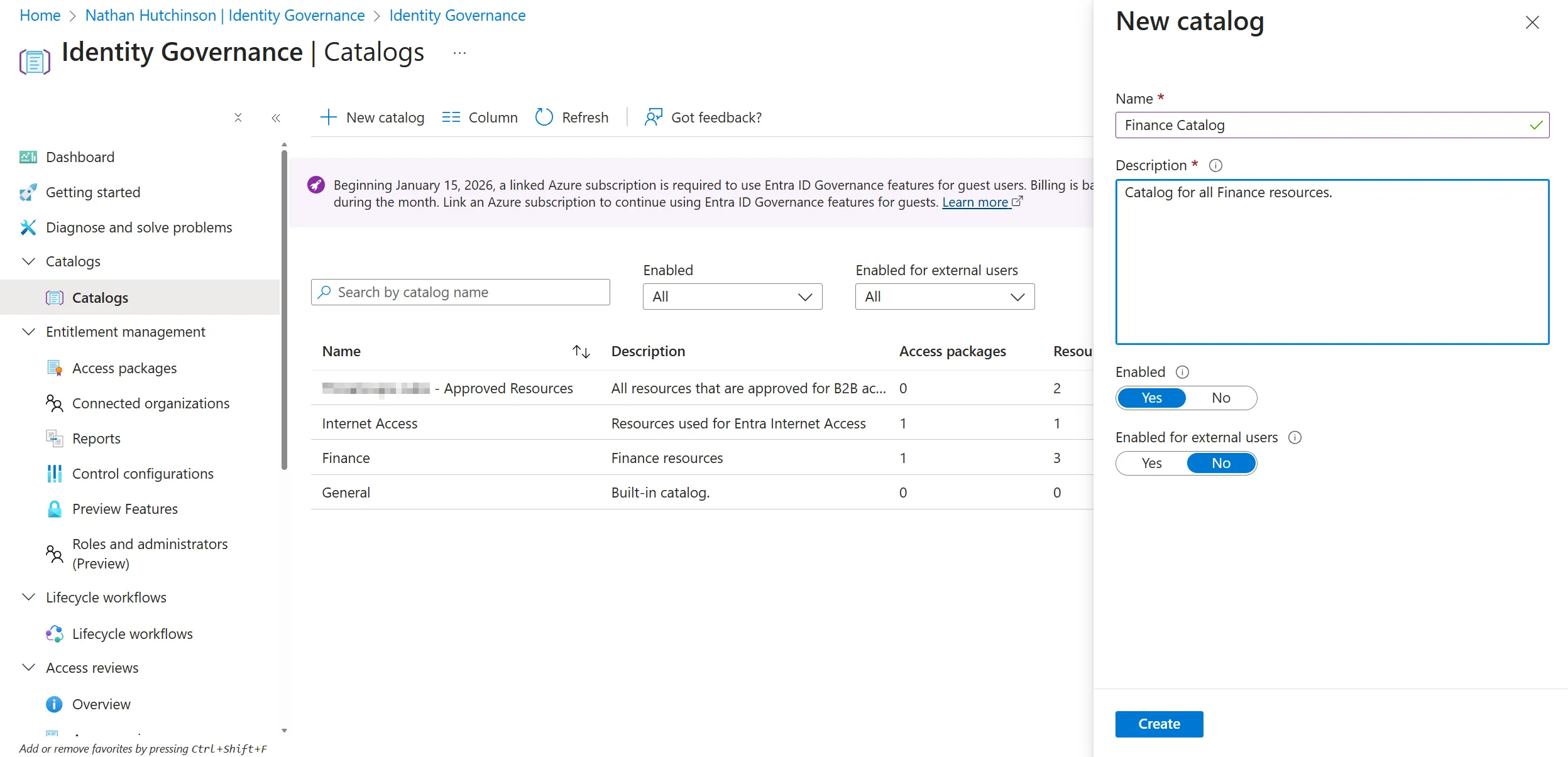
Before creating the Access Package itself, we need a catalog. Catalogs act as containers for all resources you want to make available to Access Packages. Each tenant comes with a default General catalog, but creating a department-specific one keeps things tidy and secure.
In the video, I create a Finance Catalog and disable external user access — since this scenario is internal-only.
Adding Resources to the Catalog
Next, we add all the resources our new starter will need:
- Finance Team (Microsoft Team + underlying M365 Group)
- Finance SharePoint site
- Third-party finance app group
- Any other groups or apps relevant to the department
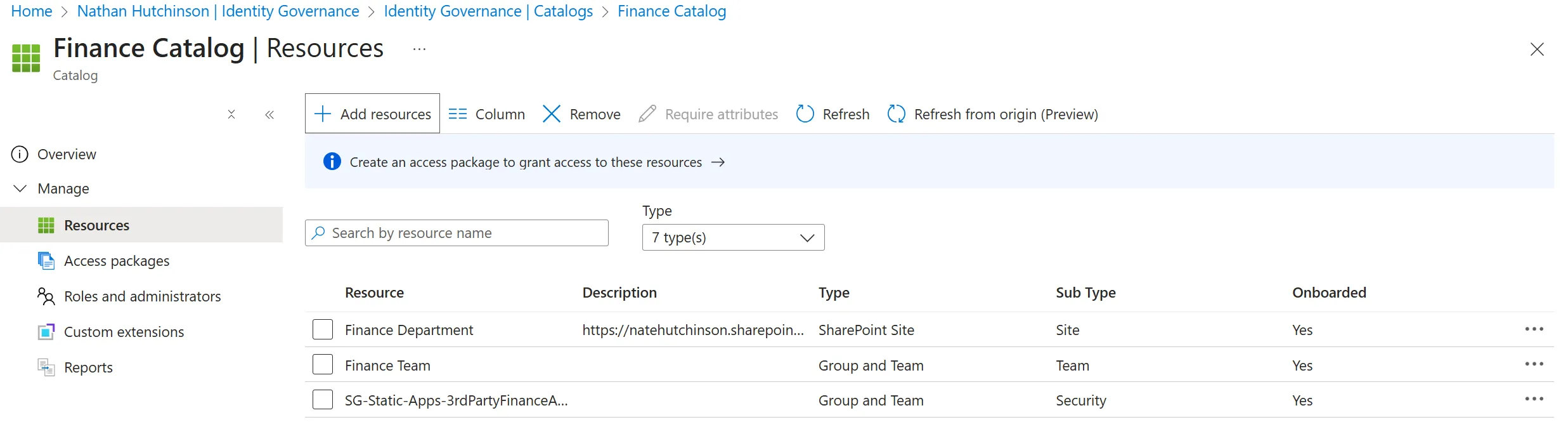
Once these are added, they’re ready to be used in an Access Package.
Building the Access Package: Finance Resources
Now for the fun part — building the “Finance Resources” Access Package.
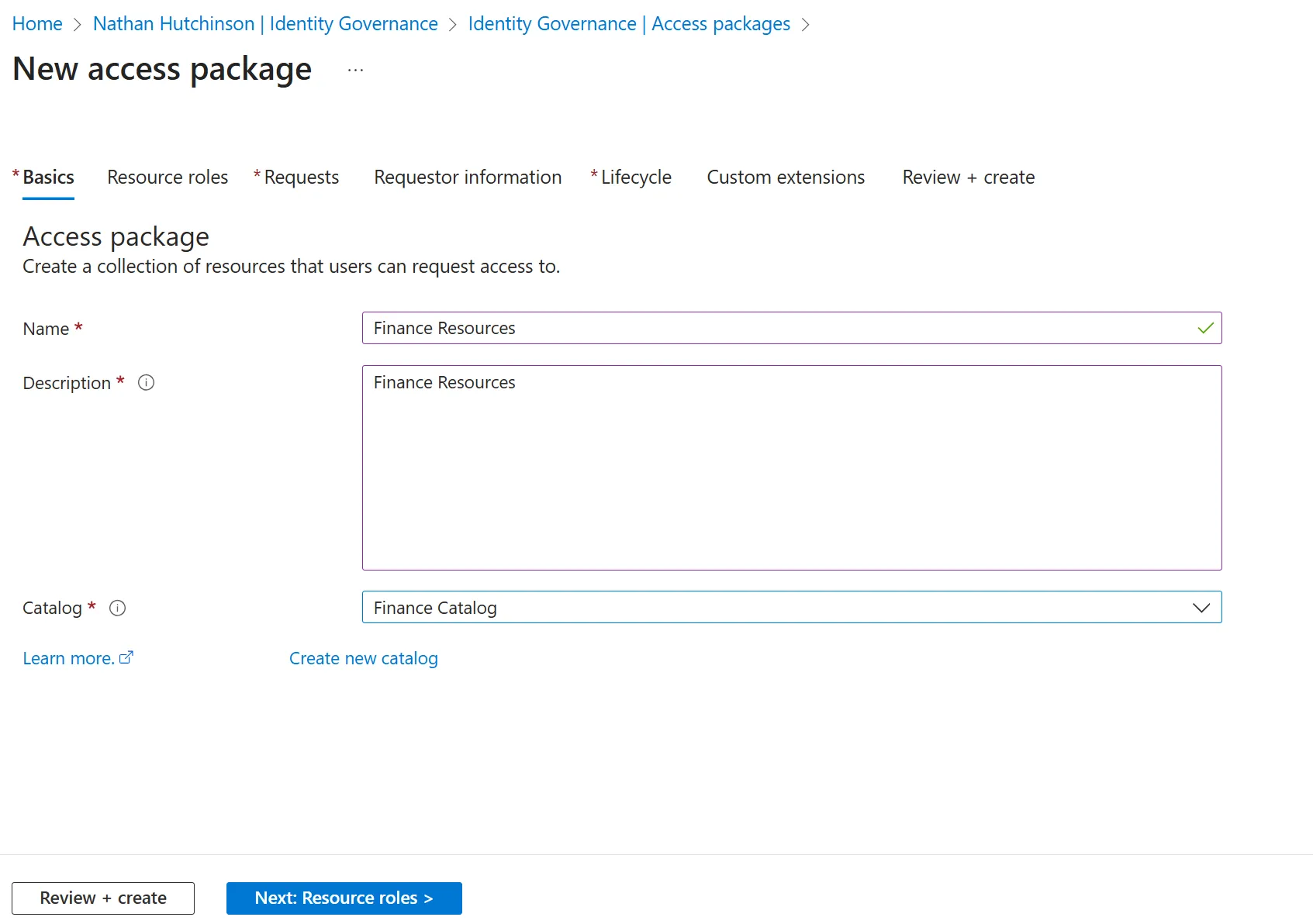
1. Create the package & select the catalog
Give your Access Package a name and choose the Finance Catalog, which limits available resources to those you added earlier.
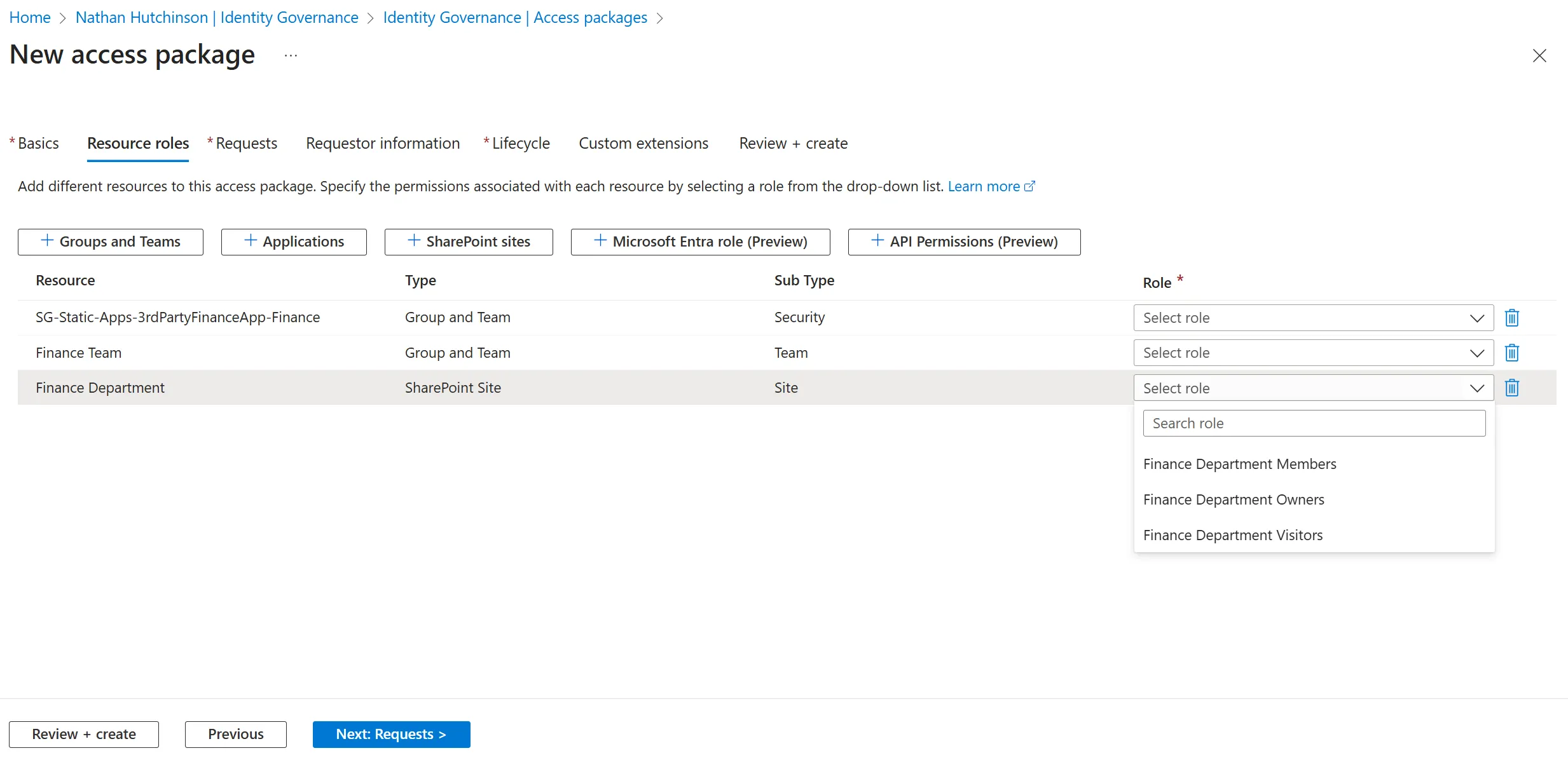
2. Select the resources
Choose the groups, Teams, and SharePoint sites you want users to receive. You’ll also specify whether users join as owners or members for groups and Teams, and whether they become visitors/members/owners for SharePoint sites.
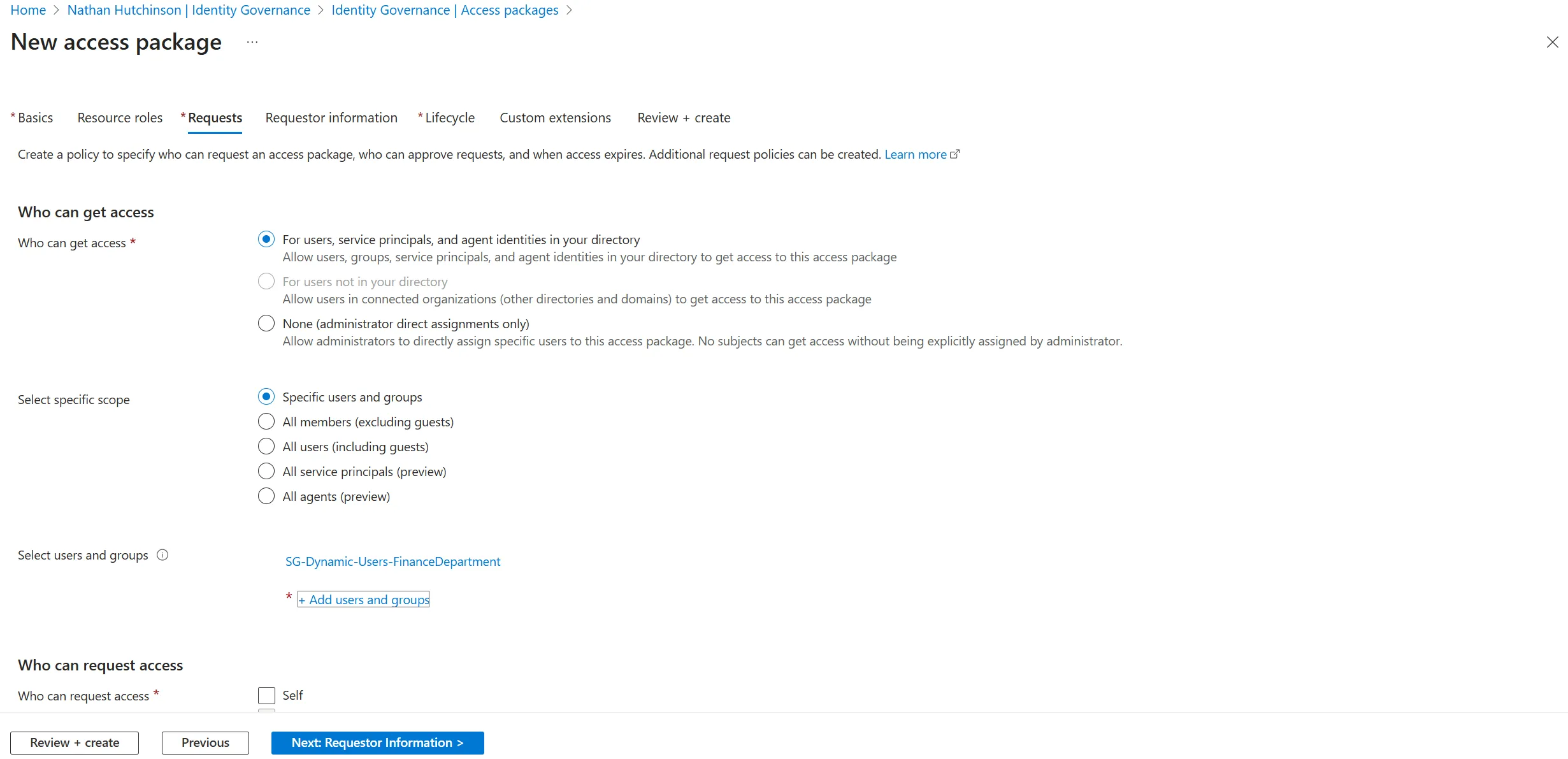
3. Who can request this Access Package?
For this scenario, only members of the Finance Department group should be able to request access.
4. Approval settings
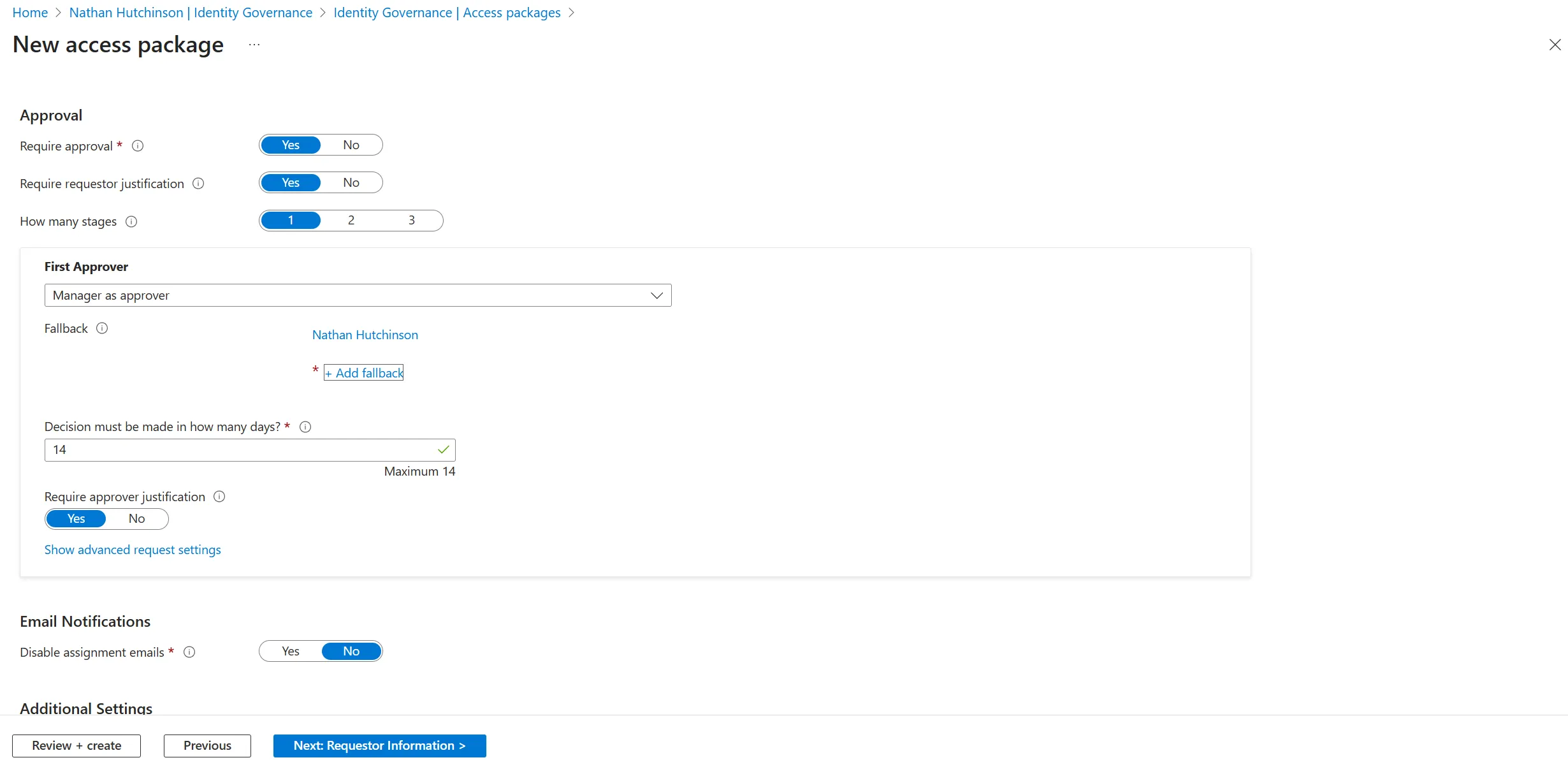
Access should require manager approval. This is driven by the manager attribute in Entra ID. Fallback approvers ensure nothing gets stuck when no manager is set.
5. Access Package lifecycle
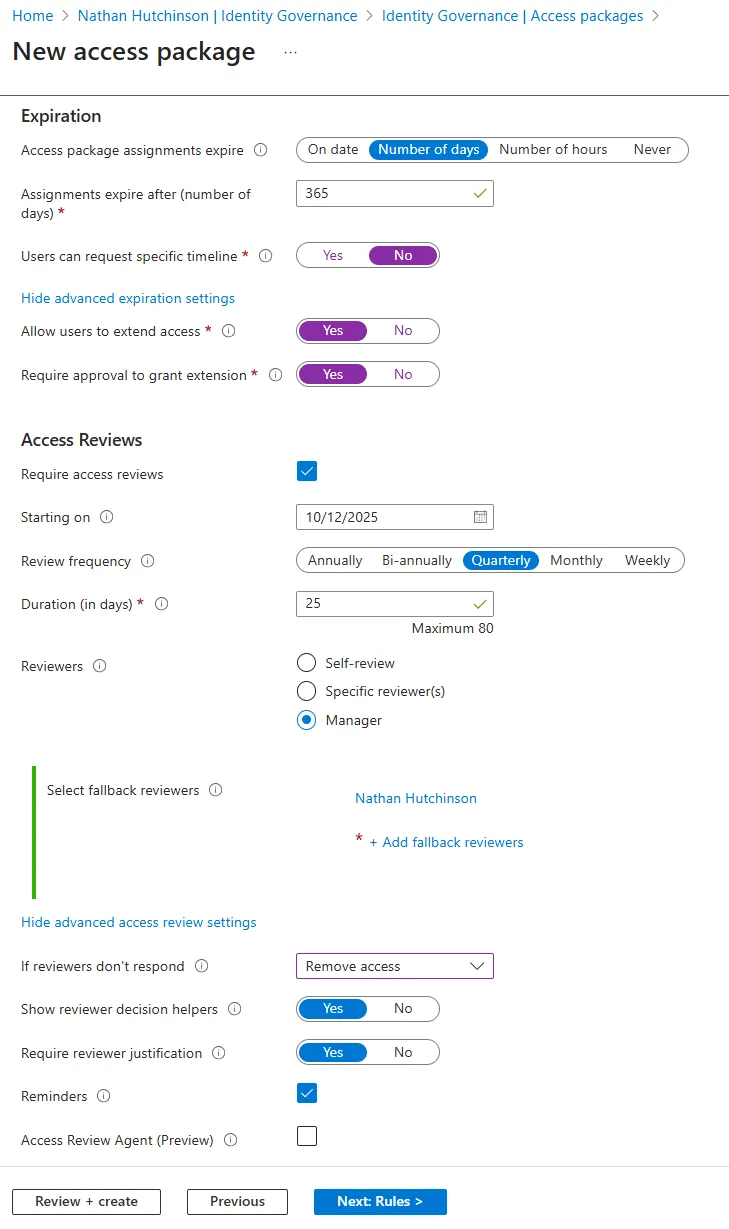
This is where governance really comes into play:
- Assignment duration: e.g., 365 days
- Extensions: Allow users to extend access with approval
- Access Reviews: Automate quarterly checks, send to manager, define reviewer behaviour, and enforce removal if no response is received
Results: A Governed, Automated Onboarding Model
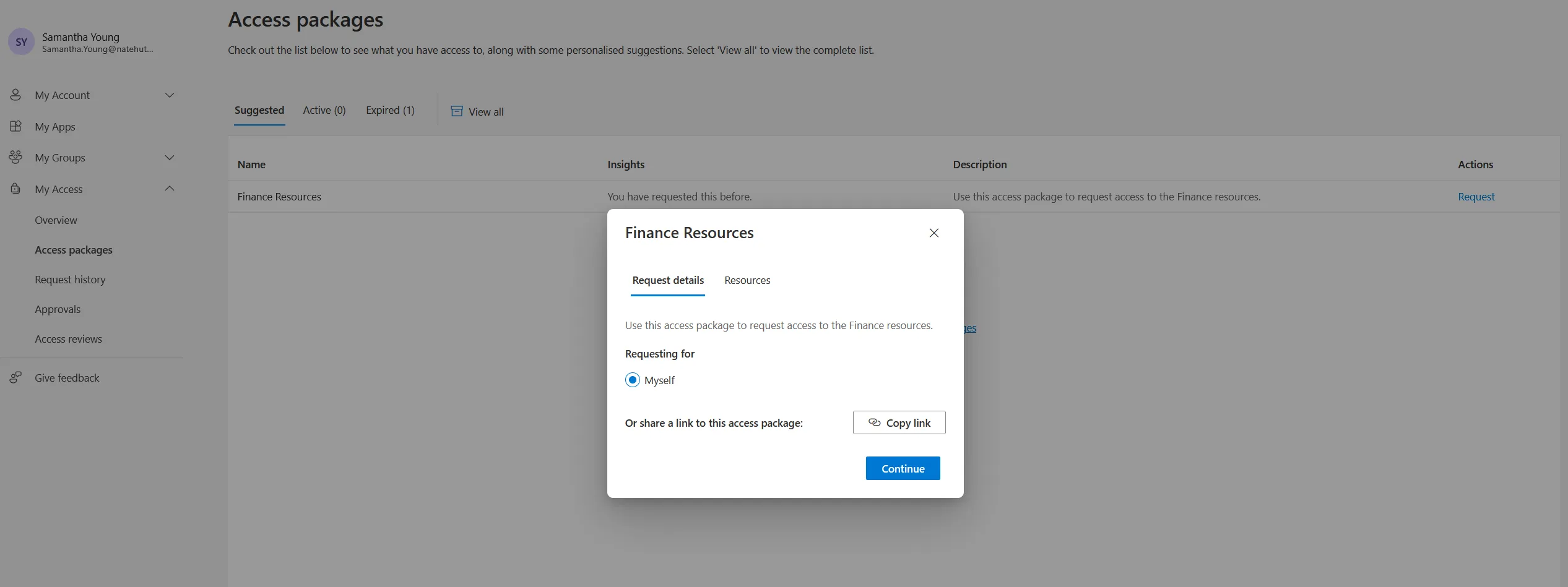
Once the Access Package is created, Finance users can request access any time via the My Access Portal. Approvals go to their manager, everything is auditable, and all access is provisioned instantly upon approval.
This creates a scalable, secure, and user-driven onboarding flow — without IT manually touching permissions.
Part 2: What’s Next?
In Part 2, we simulate user creation from an HR platform using PowerShell and walk through the end-user experience step by step.
You can watch the full video walkthrough of part 2 here:_ _Streamlining Employee Onboarding in Microsoft 365 using Entitlement Management - Pt 2


