
Simulating HR Provisioning and the End-User Experience in Microsoft Entra ID
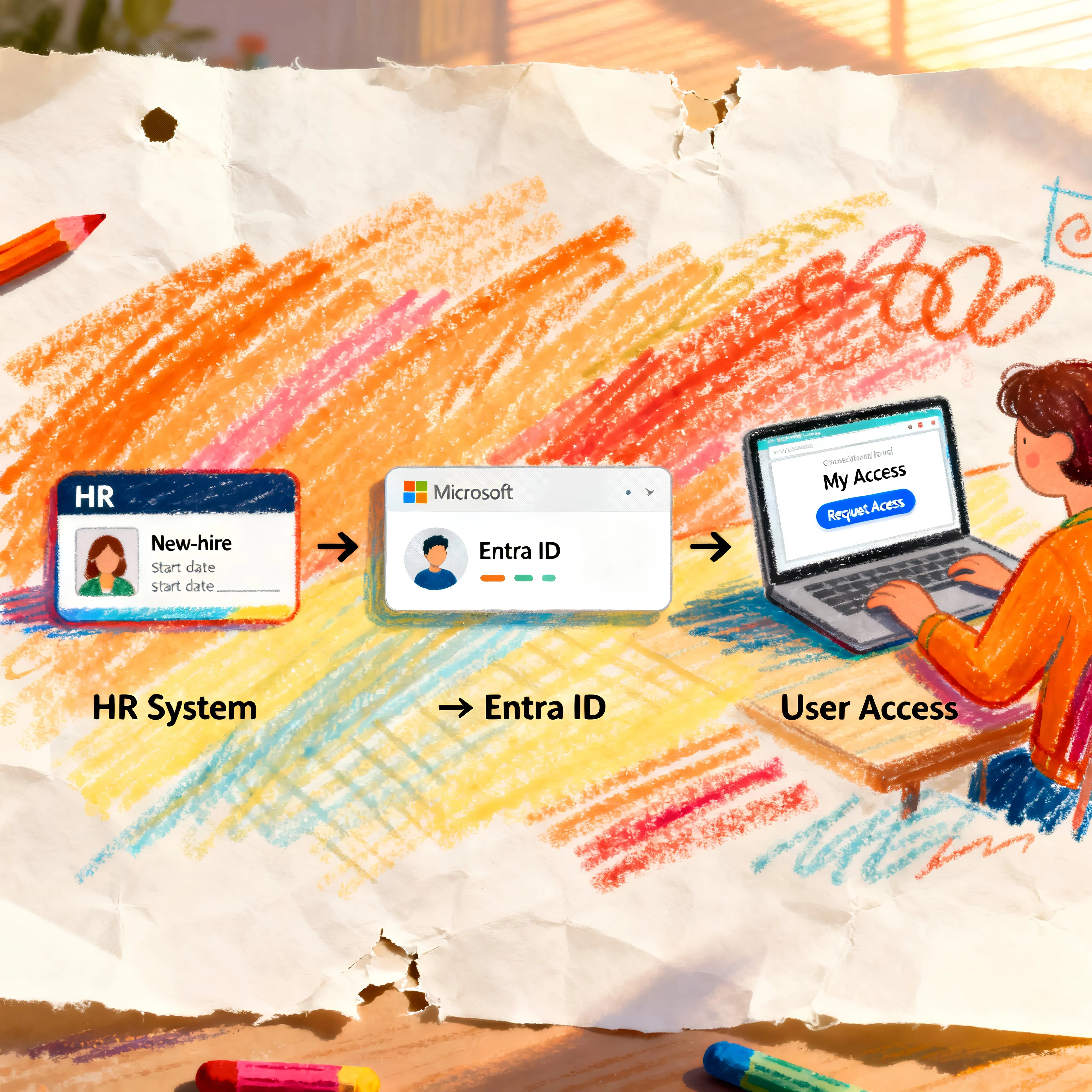
In Part 1 of this series, we walked through how to build an Access Package for new starters, how to use dynamic security groups to streamline access, and why Entitlement Management is such a powerful governance tool. In Part 2, we shift gears and look at the actual onboarding flow — from simulated HR provisioning to the new hire requesting access and the manager approving it.
Everything you’ll see here is taken directly from the video walkthrough where I demonstrate the full end-to-end process using PowerShell, Lifecycle Workflows, and Access Packages to streamline employee onboarding. If you prefer to watch your content, you can find the video here: Streamlining Employee Onboarding in Microsoft 365 using Entitlement Management - Pt 2
Table of Contents:
- Simulating HR User Provisioning with PowerShell
- Dynamic Group Assignment & License Provisioning
- Lifecycle Workflow: Sending a Welcome Email
- First Sign-In & Access Request
- Manager Approval Experience
- Access Granted: What Happens Next
- Why This Model Works
- Wrapping Up
Simulating HR User Provisioning with PowerShell
To replicate how an HR system or connector might create a user in Entra ID, I use an onboarding PowerShell script. The script creates a new user — in this case, Samantha Jones — and sets important attributes such as:
- Department
- Job title
- Usage location
- Employee ID
- Employee type
- Hire date
- Manager
You can grab the script here: Entra-ID/Scripts/Create New Cloud User at main · NateHutch365/Entra-ID
All of these attributes influence dynamic group assignments and governance workflows later on. For example, the employee hire date determines whether Samantha qualifies as a Finance New Starter, which triggers onboarding workflows and drives the messaging she receives for employee onboarding.
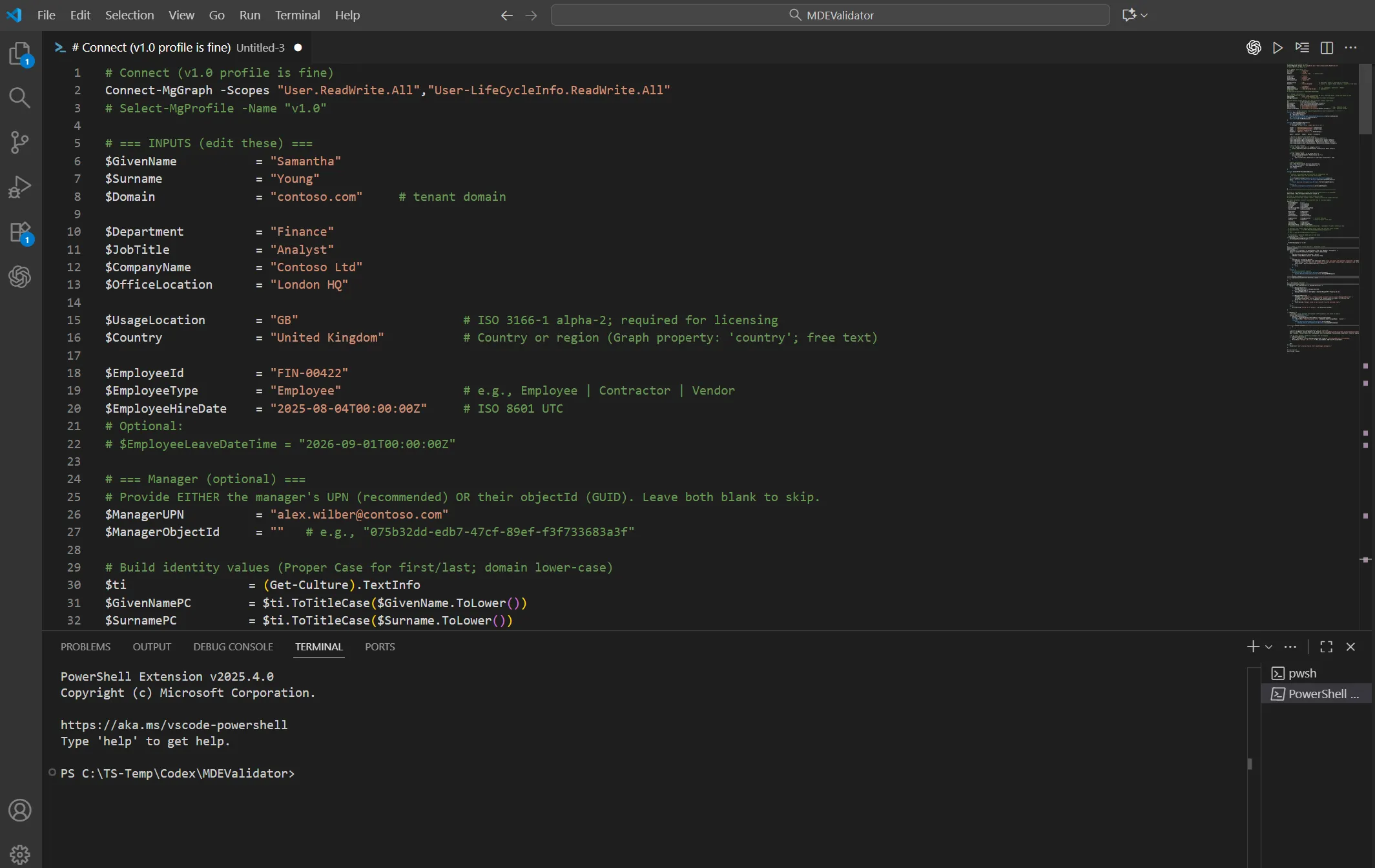
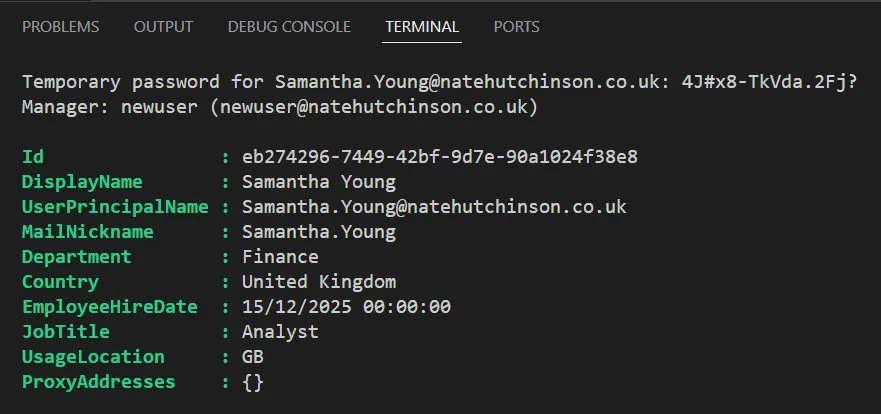
After updating the script with the tenant domain, department, hire date, and manager’s UPN, I run it and receive:
- A confirmation of all attributes applied
- A dynamically generated temporary password
- The assurance that the user object exists and is ready for downstream automation
Dynamic Group Assignment & License Provisioning
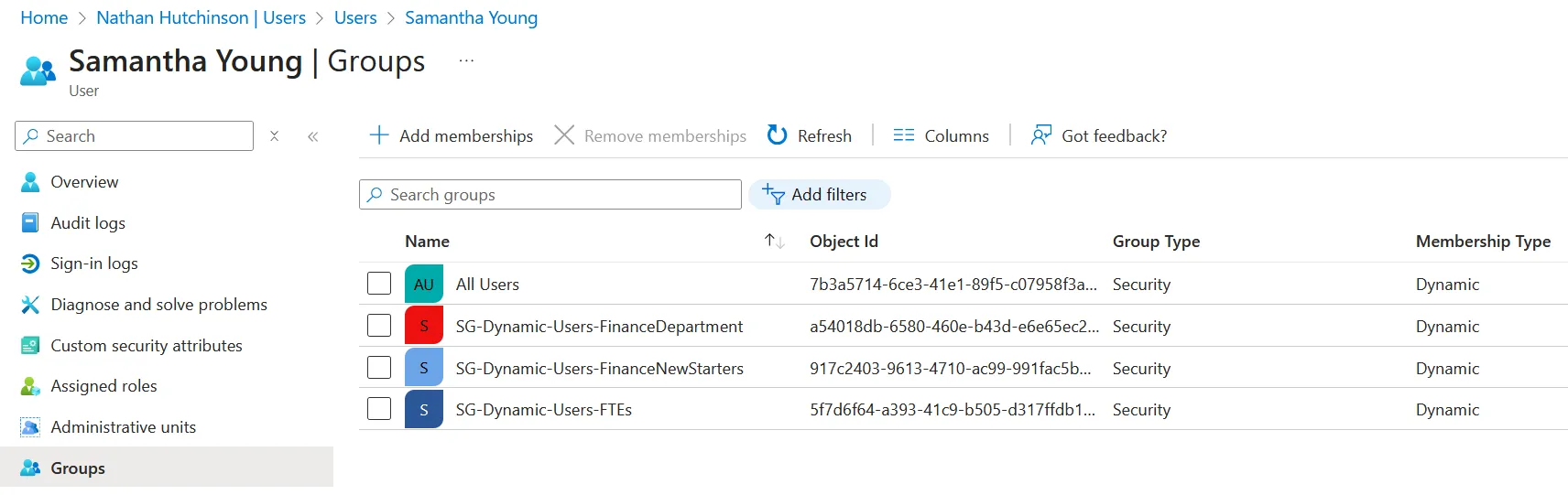
Once the account exists, Entra ID evaluates dynamic group rules immediately. Samantha is added to:
- FTE Licensing Group → assigns her Microsoft 365 licence
- Finance New Starters → marks her as a recent joiner
- Finance Department → grants her department-level access (or eligibility to departmental Access Packages)
These group assignments automatically provision her mailbox and other required services, depending on your tenant configuration.
Lifecycle Workflow: Sending a Welcome Email
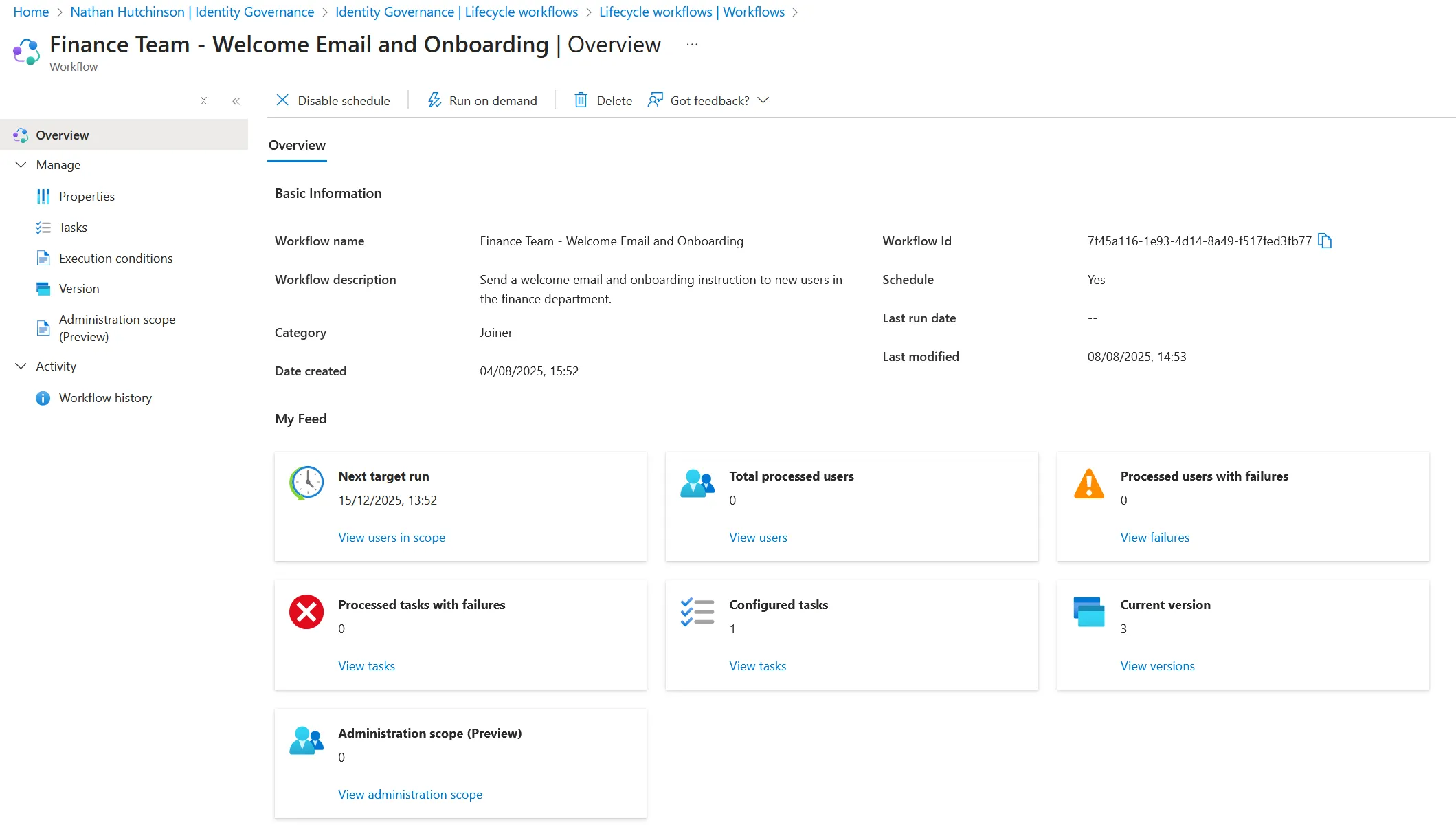
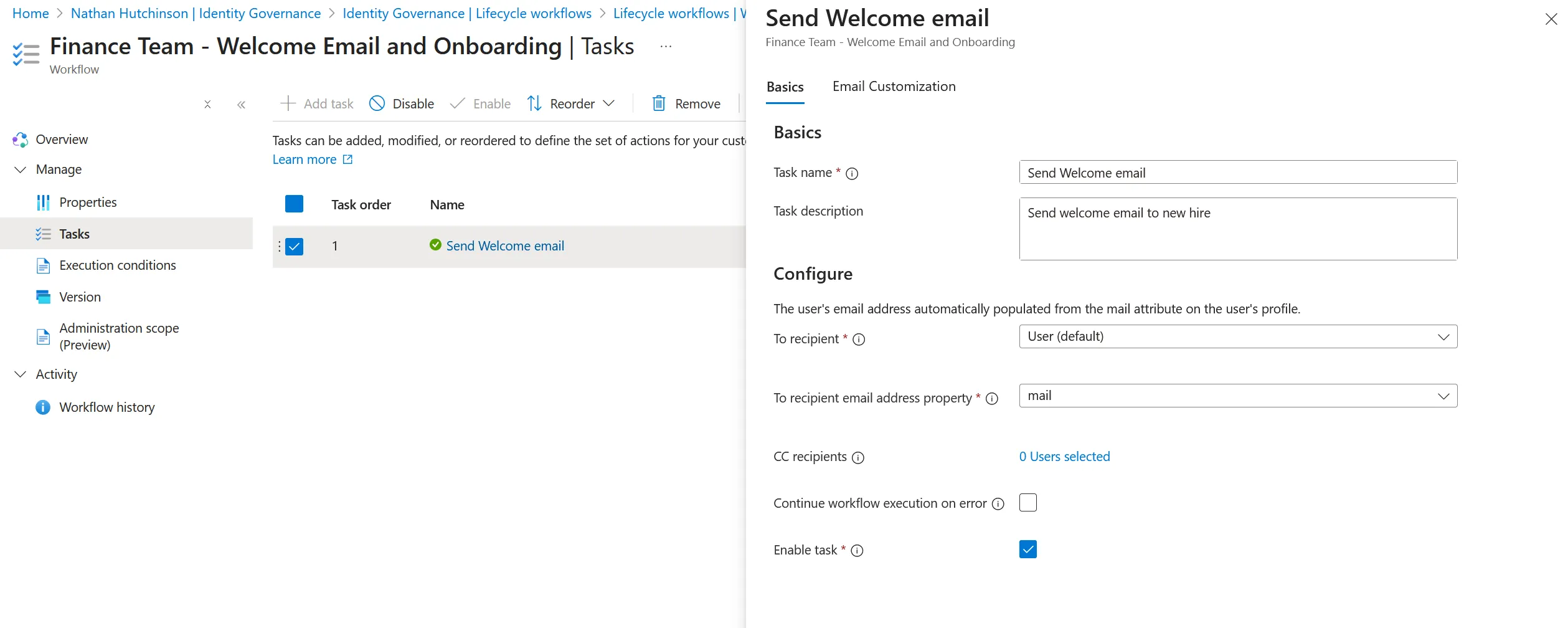
Because Samantha joins the Finance New Starters dynamic group, it triggers a Lifecycle Workflow I created earlier:
- Trigger: Added to group
- Target group: Finance New Starters
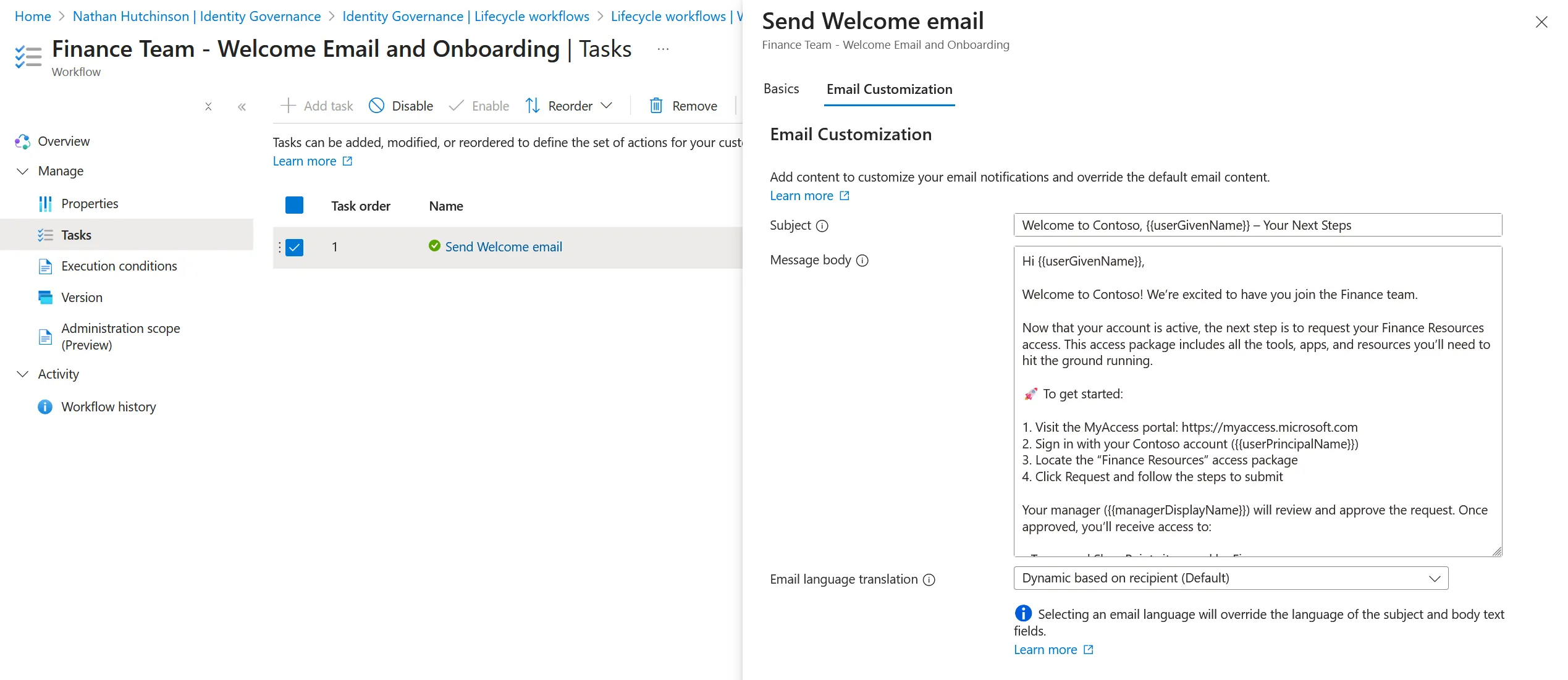
- Action: Send a customised welcome email with next steps
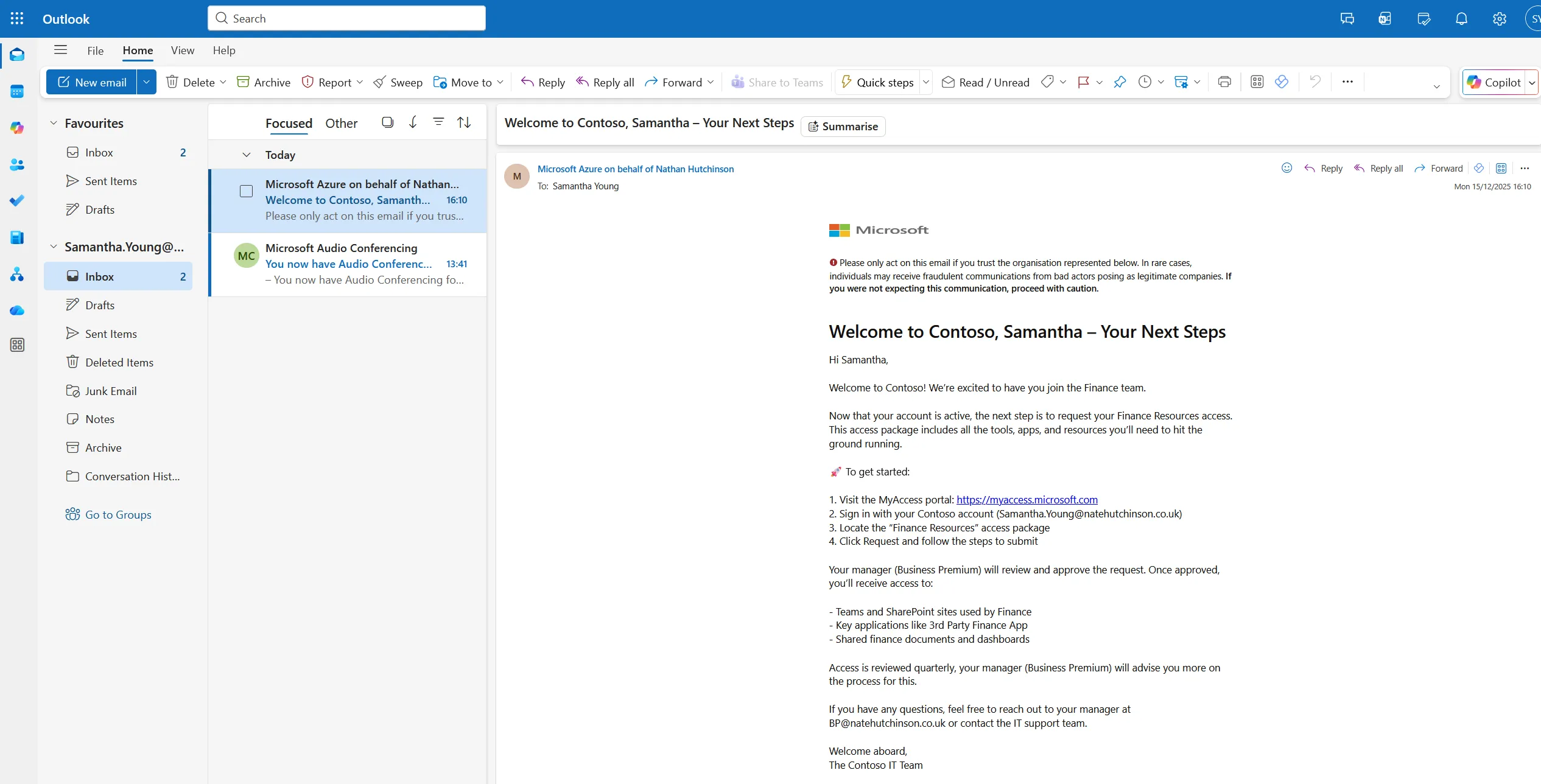
The welcome email contains:
- A friendly onboarding message
- A link to the My Access portal
- Instructions to request the Finance Resources Access Package
- Information on what resources she’ll gain access to once approved
This helps drive user adoption by clearly signposting what to do next — something many organisations overlook in their onboarding process.
Samantha’s First Sign-In & Access Request
After receiving her temporary password, Samantha signs in for the first time, updates her password, and opens her mailbox. She sees the welcome email and clicks through to the My Access portal.
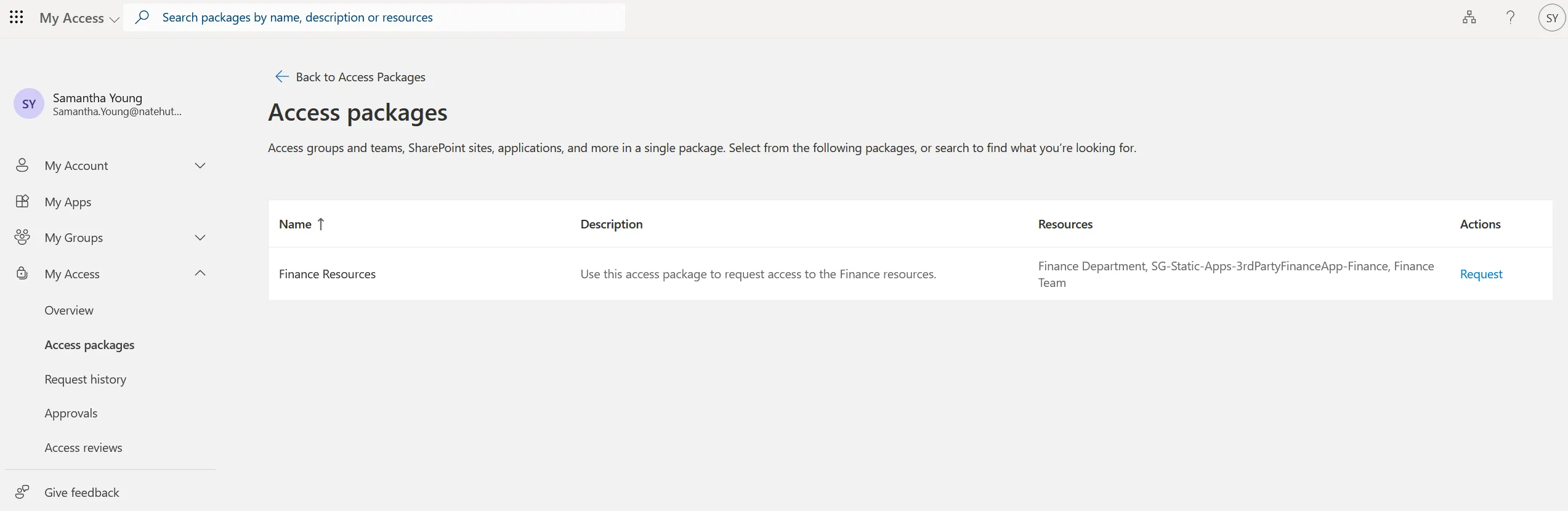
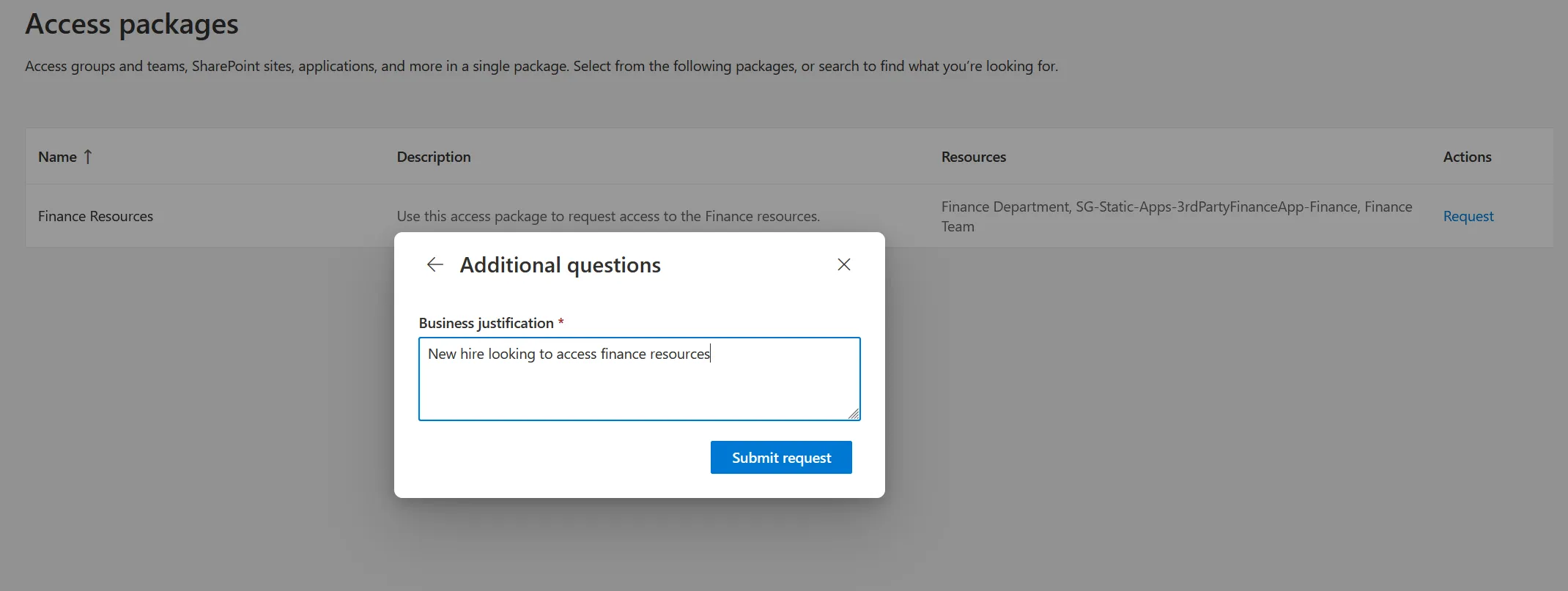
By browsing or selectingAccess Packages → View All, she can see the Finance Resources Access Package created in Part 1. The request flow prompts her for:
- Resource overview
- Business justification (e.g., “New hire looking to access finance resources”)
She then submits the request for manager approval.
Manager Approval Experience
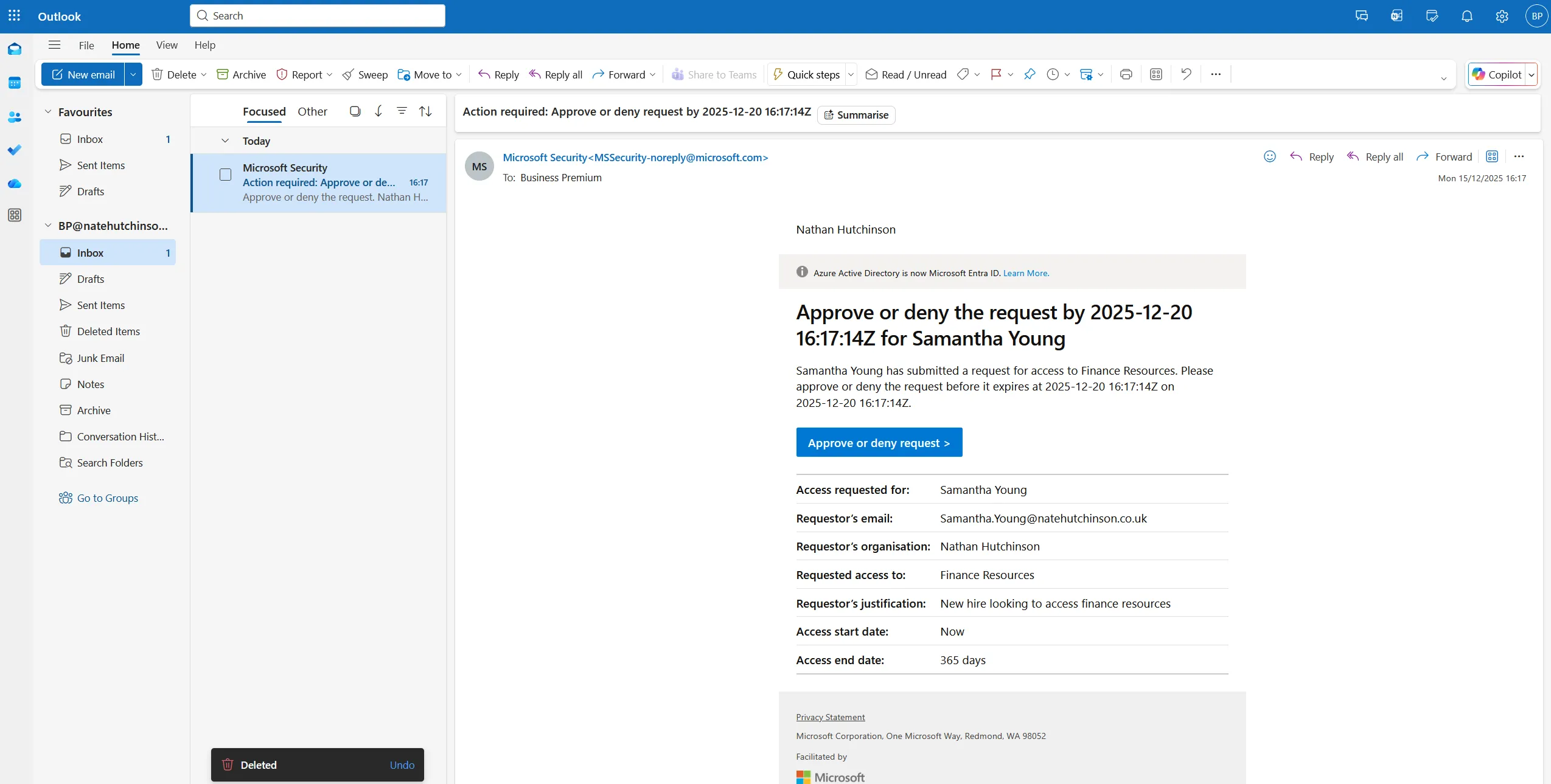
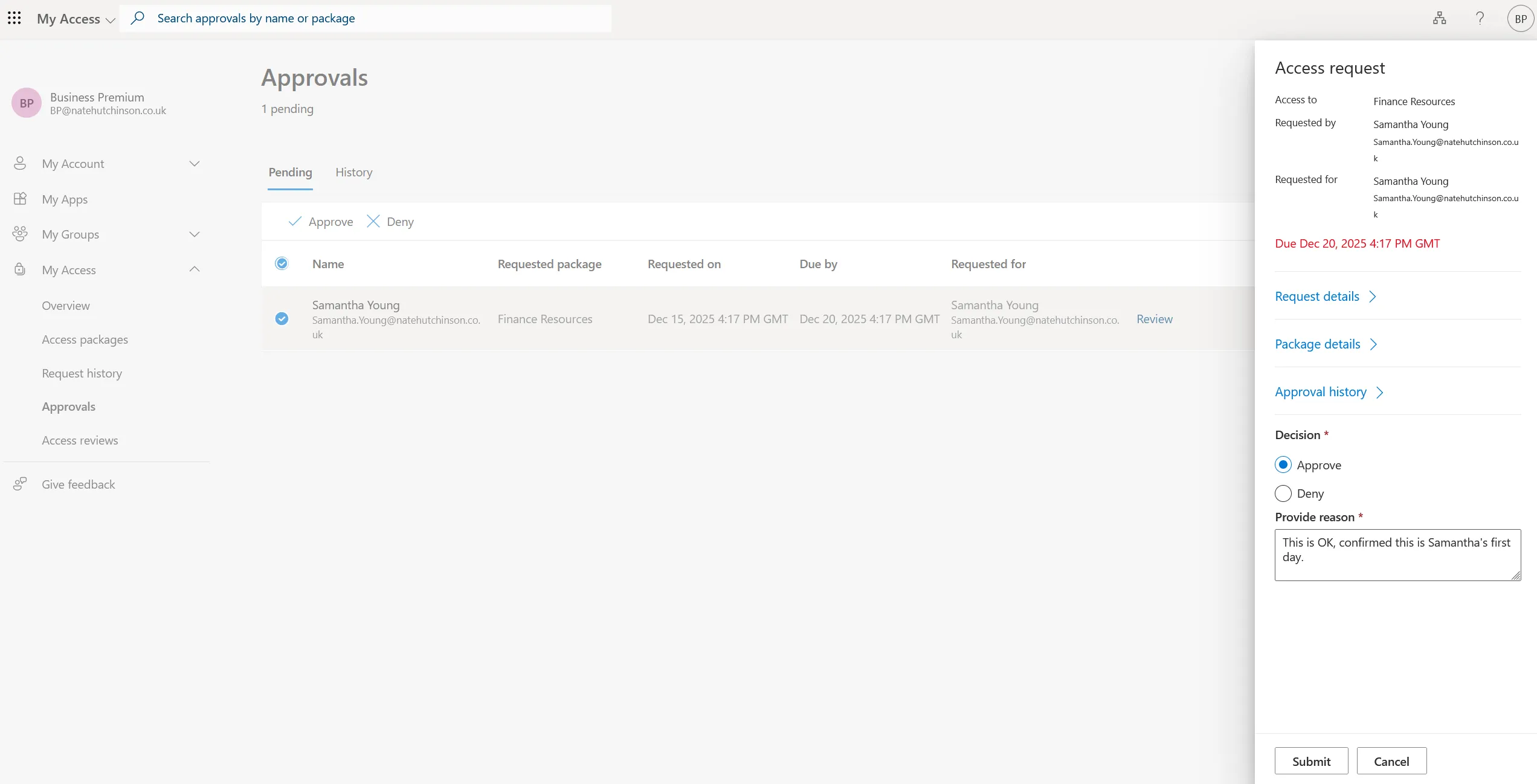
Because the Access Package uses Manager Approval, her manager receives an approval email instantly. The manager can open the request in the My Access portal, view the justification, add their own reasoning, and approve or deny the request.
This moves accountability away from IT and empowers business decision-makers to control who should have access to what.
Access Granted: What Happens Next
Once approved, Entra ID automatically assigns Samantha all the resources tied to the Access Package:
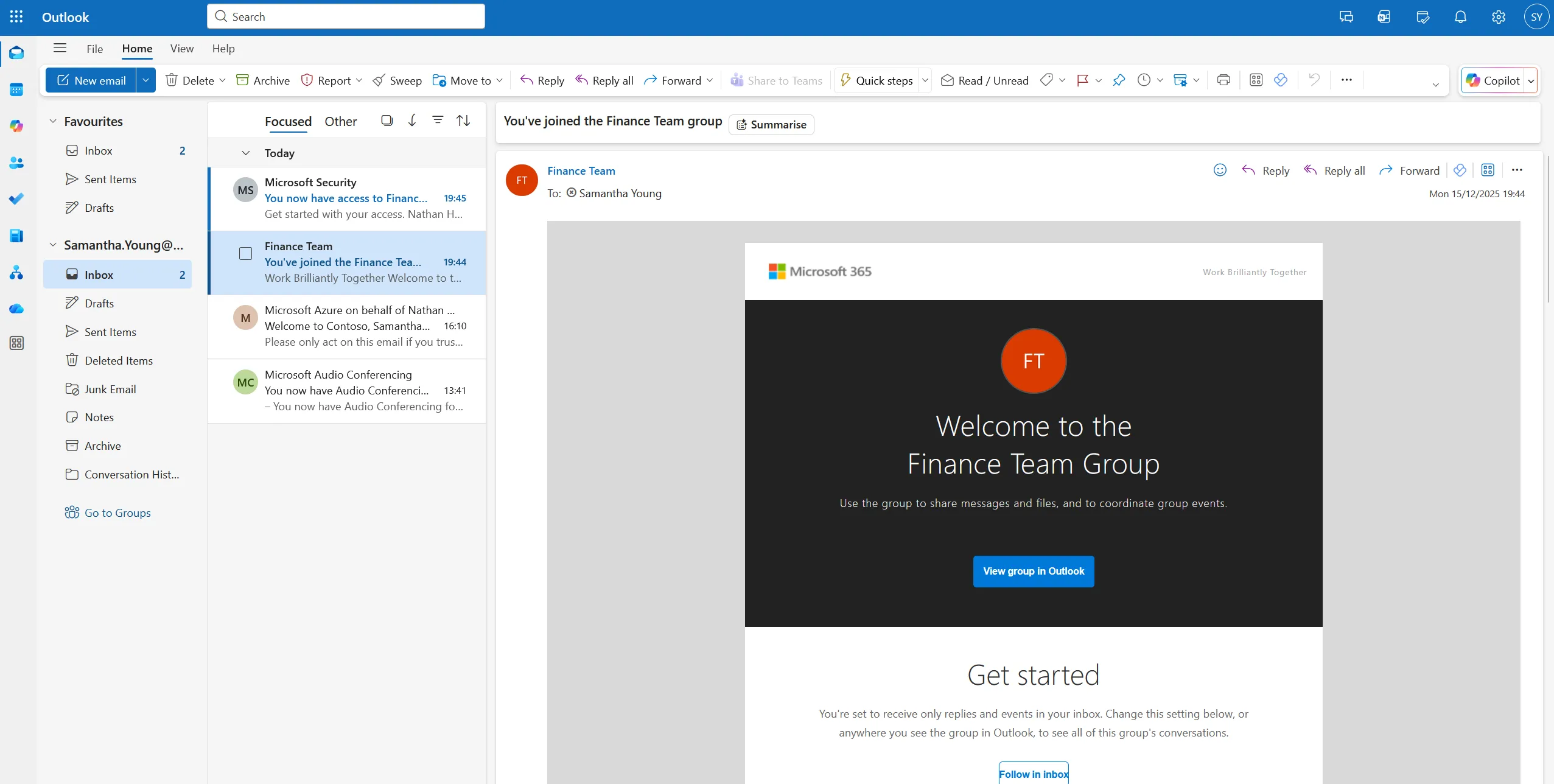
- She is added to the Finance Team (M365 group + Team), which triggers the standard “Welcome to the Team” email
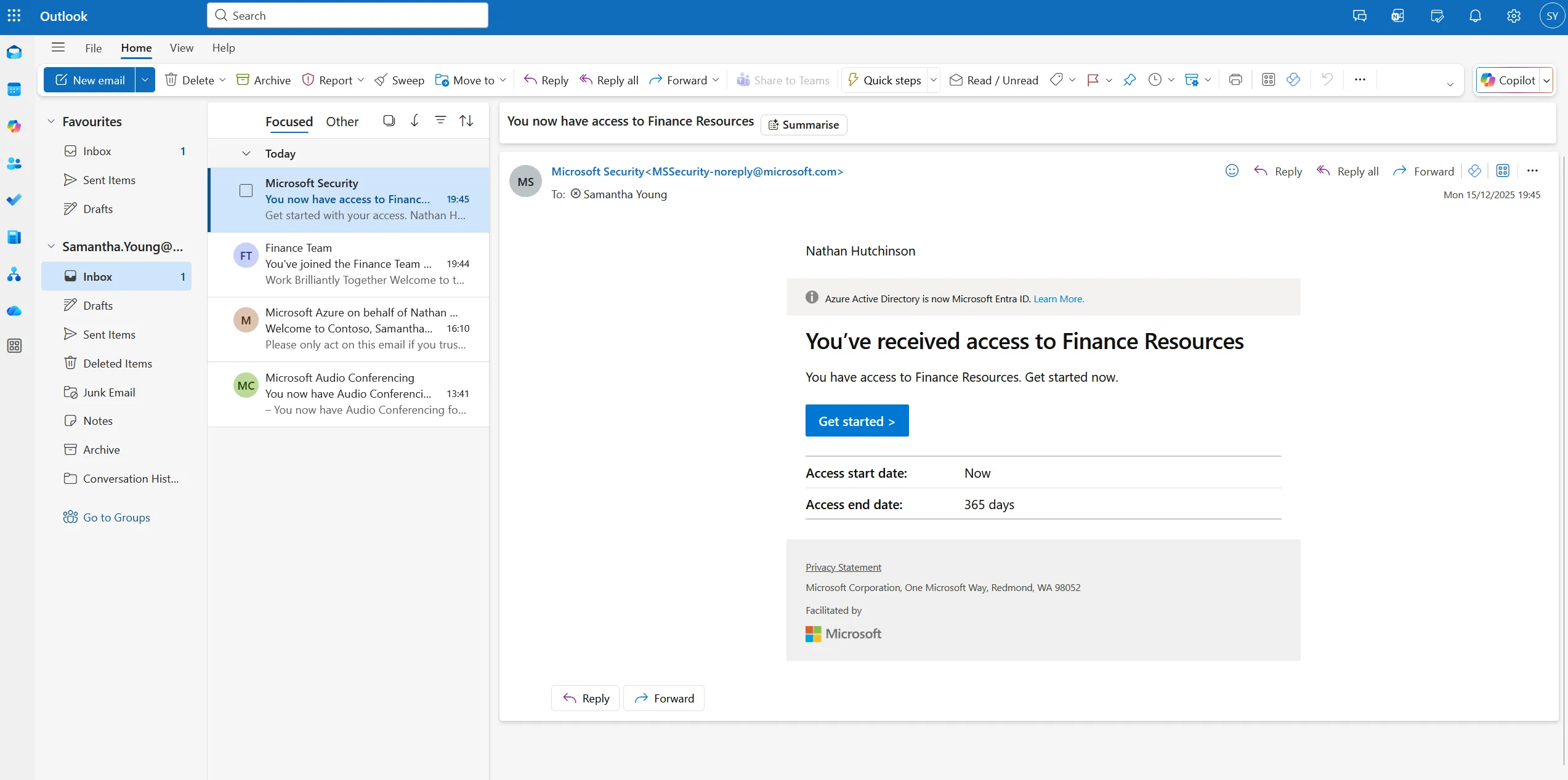
- She gains access to the Finance SharePoint site
- She receives permissions for the third-party finance application
- She gets an email confirming her Access Package has been approved and applied
No manual steps. No IT tickets. No delays.
Why This Model Works
This workflow demonstrates how much heavy lifting you can eliminate by combining:
- Automation (PowerShell or HR connectors)
- Dynamic groups
- Lifecycle Workflows
- Access Packages
- Manager approvals
- Access Reviews (from Part 1 configuration)
The result is a governed, scalable, and secure onboarding process where IT only needs to define the rules — Entra ID handles the rest.
This setup works whether you’re using:
- A third-party HR tool
- PowerShell automation
- MSP-focused provisioning tools
- Or native Microsoft Entra ID Governance features
And if you’re using full Entra ID Governance, there are even more automation opportunities — something I’ll explore in future videos and blogs.
Wrapping Up
Part 2 completes the onboarding story: from user creation through to access request, approval, and automated assignment.
If you want to explore advanced scenarios such as guest access governance, role-specific access packages, multi-stage approval flows, or movers and leavers, let me know — I’m planning deep dives soon.


