

If you’ve been paying attention to Microsoft’s identity roadmap over the past year, you’ll have noticed a clear signal: SMS-based MFA is on its way out, and passkeys are the future Microsoft is pushing towards. In May 2025, Microsoft announced that passkeys are now the default sign-in method for new consumer Microsoft accounts - and in July 2026 they went further, announcing that passkeys are becoming the default authentication method in Microsoft Entra ID itself, with a concrete timeline for retiring SMS and voice call delivery from the platform entirely.
So if you’re an IT admin responsible for a Microsoft 365 environment, now is the time to start thinking seriously about passkeys - not as a distant roadmap item, but as something you should be actively planning and piloting today.
This post is going to walk through the strategic considerations for planning a passkey rollout in a real-world M365 environment - the decisions you’ll face, the pitfalls to avoid, and a practical approach for getting from SMS/push notifications to phishing-resistant authentication.
Table of Contents
- Why Move Away From Push Notifications and SMS?
- Microsoft’s Direction: Passkeys as the Default
- The Two Types of Passkeys - and Why It Matters
- Choosing Your Strategy: Passkey Profiles
- Practical Rollout Approach
- The Elephant in the Room: Legacy Systems That Don’t Support Passkeys
- Downgrade Attacks: A Risk Worth Knowing About
- Summary
Why Move Away From Push Notifications and SMS?
Before diving into the how, it’s worth being clear about the why.
SMS has long been considered the weakest form of MFA. It’s vulnerable to SIM-swapping attacks, interception, and SS7 protocol weaknesses. Microsoft themselves recommend moving away from it and from September 2025, they deprecated management of SMS via the legacy MFA and SSPR policies, redirecting everything through the newer Authentication Methods Policy.
More significantly, Microsoft has announced a concrete timeline for removing SMS and voice MFA from Entra ID. From their July 2026 security blog:
- 1 September 2026 - All users enabled for SMS or voice are automatically enabled for passkeys and nudged to register one at their next MFA sign-in
- 1 February 2027 - Microsoft-provided SMS and voice delivery ends entirely. After this date, any user still relying on SMS or voice will be required to register a passkey before they can sign in - with no opt-out
Organisations that genuinely need to keep SMS or voice after February 2027 (don’t let that be you) will be able to select a third-party telecom provider through the Microsoft Security Store (details and pricing to be published from October 2026). But for most organisations, the right answer is simply to move to passkeys. If you’re still relying on SMS today, this timeline makes the migration decision for you.
Push notifications (the “Approve / Deny” prompt in the Microsoft Authenticator app) are better than SMS, but they’re not without their own risks. MFA fatigue attacks - where an attacker repeatedly sends push notifications hoping a user eventually approves one - became mainstream knowledge following several high-profile breaches. Microsoft addressed this with Number Matching, which is now enforced by default and significantly reduces the risk. But the broader issue remains: push notifications are still phishable in the right circumstances. An adversary-in-the-middle (AiTM) proxy can intercept the authentication flow and steal a valid session token even after MFA is satisfied.
Passkeys solve this at a fundamental level. Because a passkey is cryptographically bound to the site or app it was created for, it simply cannot be used to authenticate to a spoofed or phishing site. The browser or device verifies the origin, and if it doesn’t match, the authentication doesn’t happen. That’s why passkeys are considered phishing-resistant authentication not just “strong MFA,” but a fundamentally different security model.
Microsoft’s Direction: Passkeys as the Default
Microsoft has been clear about where this is heading:
- New Microsoft consumer accounts (Outlook.com, Xbox, Hotmail, etc.) now default to passkeys instead of passwords - announced on World Password Day, May 2025. Existing consumer account holders are being progressively prompted to register a passkey and remove their password.
- Microsoft Entra ID is making passkeys the default authentication method for work/school accounts. Beginning September 2026, any user enabled for SMS or voice will be auto-enabled for passkeys and prompted to register one. From February 2027, Microsoft-provided SMS and voice delivery will be retired entirely. (Source - Microsoft Security Blog, July 2026)
- System-preferred MFA is set to “Microsoft managed” by default across all tenants, and Microsoft has confirmed that the managed value is Enabled. As of May 2026, this was expanded to apply to first-factor authentication as well as second-factor, with a full rollout to all tenants completing by August 2026. In practice, this means if a user has a passkey registered, Entra ID will prefer it automatically with no admin configuration required. (Source)
- Microsoft Authenticator passkeys - users with the Authenticator app can now create a device-bound passkey directly within the app, giving you a simple, zero-cost path to phishing-resistant MFA for anyone already using the app.
The message is clear: if you’re not already planning your passkey rollout, you’re falling behind.
The Two Types of Passkeys - and Why It Matters
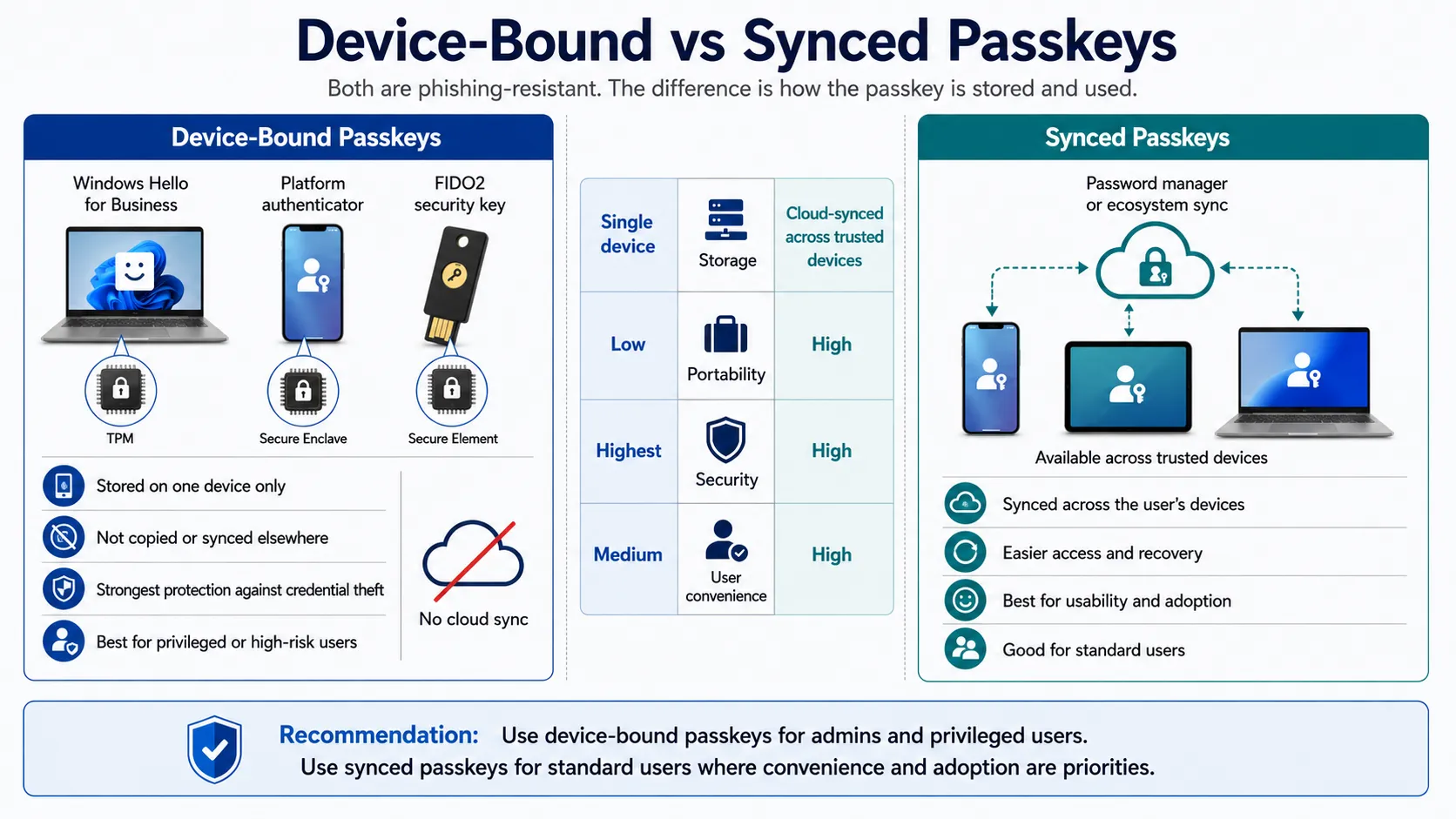
Before you go anywhere near the Entra admin centre, there’s one distinction you need to be very clear on, because it shapes almost every configuration decision you’ll make:
Device-Bound Passkeys
A device-bound passkey is stored on a specific piece of hardware and cannot be copied or synced elsewhere. Examples include:
- YubiKeys (physical FIDO2 security keys)
- Windows Hello for Business (stored in the device’s TPM chip)
- macOS Platform SSO (the macOS equivalent of Windows Hello for Business)
- Microsoft Authenticator passkeys (when registered directly in the app)
Device-bound passkeys provide the strongest protection against credential theft and replay. When hardware-backed, the private key is protected by the device’s security hardware and cannot normally be exported, copied or synced to another device. This significantly reduces the risk of credential theft, although compromise of the endpoint itself may still allow an attacker to steal session tokens or access resources through an already-authenticated session.
The trade-off is user experience: if a user loses their device or gets a new one, they need to re-enrol. It also means users can only authenticate from their registered device.
Synced Passkeys
A synced passkey is stored in a password manager or cloud keychain and can sync across the user’s devices. Examples include:
- Apple iCloud Keychain (syncs across the user’s Apple devices)
- Google Password Manager (syncs across Android / Chrome)
- NordPass, 1Password, Bitwarden (third-party password managers)
Synced passkeys are less secure in an absolute sense, because if someone gains access to your iCloud account, they could theoretically access your passkeys. However, they’re still phishing-resistant - the origin binding still applies regardless of where the passkey is stored. And critically, they massively reduce the friction of rolling out passkeys to a large user base: users don’t need a new device, a YubiKey, or any special setup. They just use the devices and password managers they already have.
Choosing Your Strategy: Passkey Profiles
This is where a lot of organisations go wrong. The natural instinct is to simply enable all passkey types for everyone and manage the risk via Authentication Strength policies in Conditional Access. That’s not necessarily wrong, but it misses an important tool - Passkey Profiles.
Passkey Profiles let you define granular passkey registration rules per user group. The key thing to understand is that they work on an OR basis - not most-restrictive-wins. If a user is in scope of multiple passkey profiles and each profile allows a different passkey type, they can register both types. That’s actually useful when designed intentionally.
Here’s the approach I’d recommend:
Default profile (all users) - Device-bound passkeys with attestation enabled
Set the default passkey profile to require device-bound passkeys. Enable attestation in this profile. Attestation is not supported for synced passkeys so it should always be enabled on your device-bound profile - it verifies the make and model of the authenticator and ensures the key genuinely comes from the claimed hardware. This is your security baseline.
The significant upside of making device-bound the default is that it covers everyone with minimal friction - anyone already using the Microsoft Authenticator app can register a device-bound passkey in a few taps. You don’t need to carve out a special profile for admins or executives because device-bound already covers them.
Synced passkey profile - Opt-in via an exemption group
Create a second passkey profile that allows synced passkeys. Assign it to a specific group for users who need or prefer synced passkeys. Crucially, do not enable attestation on this profile - attestation is not supported for synced passkeys.
To keep the admin overhead manageable, consider provisioning this group via an Entra ID Access Package with an approval workflow. That way, users who want to use a synced passkey can request access, it goes through an approval, and the right profile is applied without you having to manage group membership manually.
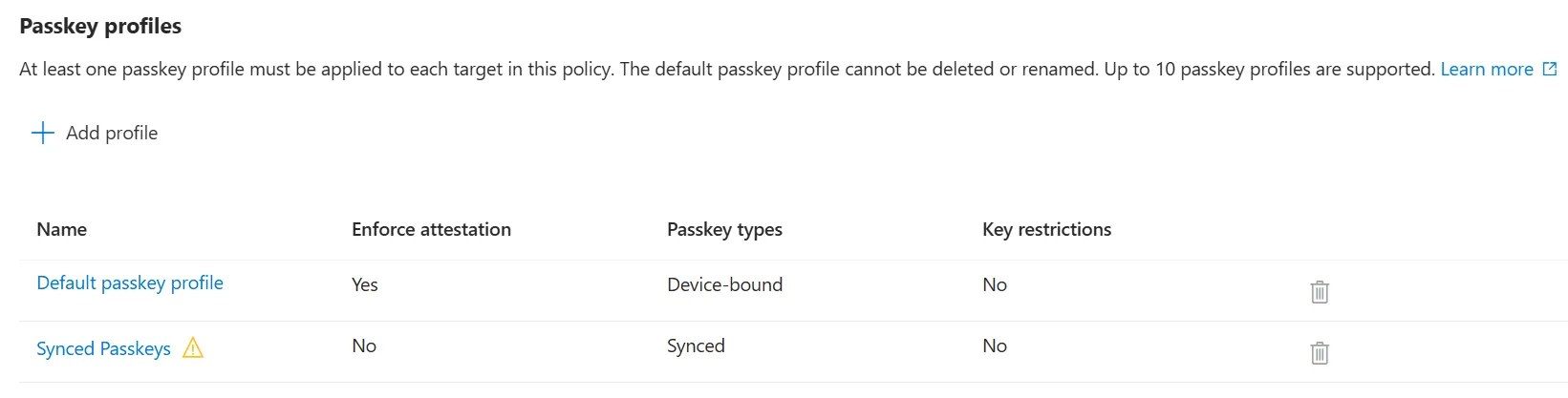
Note: AAGUID restrictions can be applied to any passkey profile, regardless of type. Each passkey vendor, make, and model has a unique AAGUID, so you can use these across your profiles to define exactly which passkey providers are permitted. For example, you might restrict your synced passkey profile to allow only NordPass, Apple iCloud Keychain (note: both the “Apple” and “iCloud Keychain” GUIDs are needed to cover all Apple devices), and Google Password Manager. Similarly, you could restrict your device-bound profile to specific hardware key models if needed. It’s a powerful control, but an optional one - you don’t need AAGUID restrictions to get started.
Where Authentication Strengths fit in
Authentication Strengths in Conditional Access are the right tool when you want to ensure only specific passkey types can be used to access a particular resource - not for governing what users can register. For example:
- Enforce device-bound passkeys only for access to Entra admin portals
- Enforce device-bound passkeys only for access to a sensitive finance application with SSO
- Allow all passkey types (including synced) for general M365 access
This keeps your CA policies clean and purposeful, rather than trying to duplicate your passkey profile logic inside Authentication Strengths.
Practical Rollout Approach
Here’s how to approach the rollout in a real environment.
Step 1: Configure Your Passkey Profiles
As covered above:
- Create a default passkey profile - device-bound, attestation enabled, assigned to all users
- Create a synced passkey profile - synced passkeys, attestation disabled, assigned to your synced passkey exemption group
- Optionally apply AAGUID restrictions to either profile to limit which passkey vendors, makes, or models are permitted
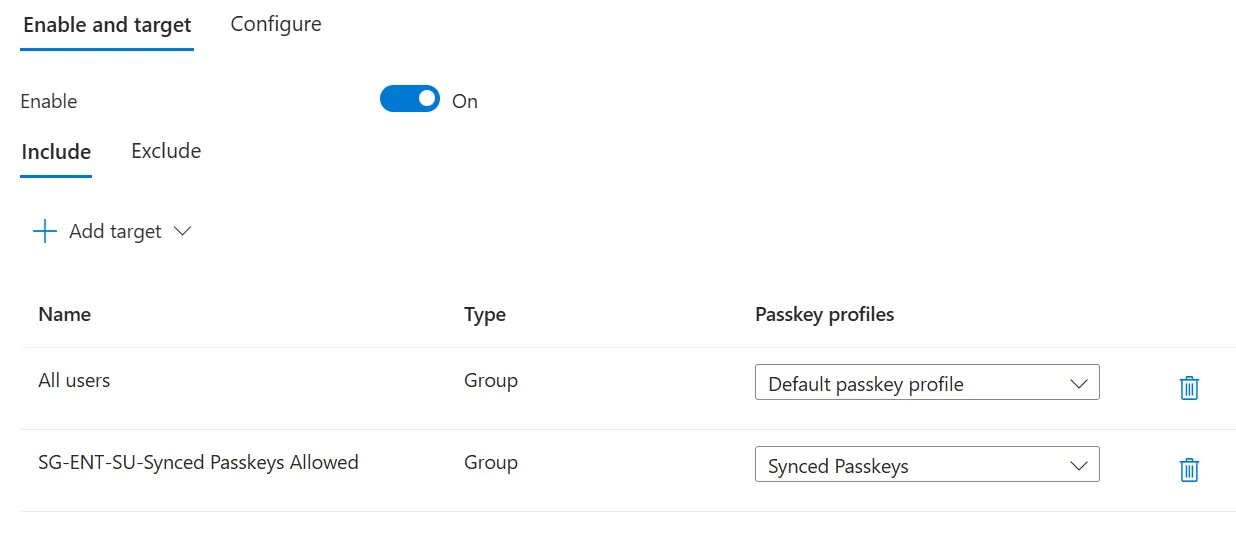
Remember: profiles work on an OR basis. A user in both the default group and the synced exemption group can register both types - that’s intentional.
Step 2: Check System-Preferred MFA
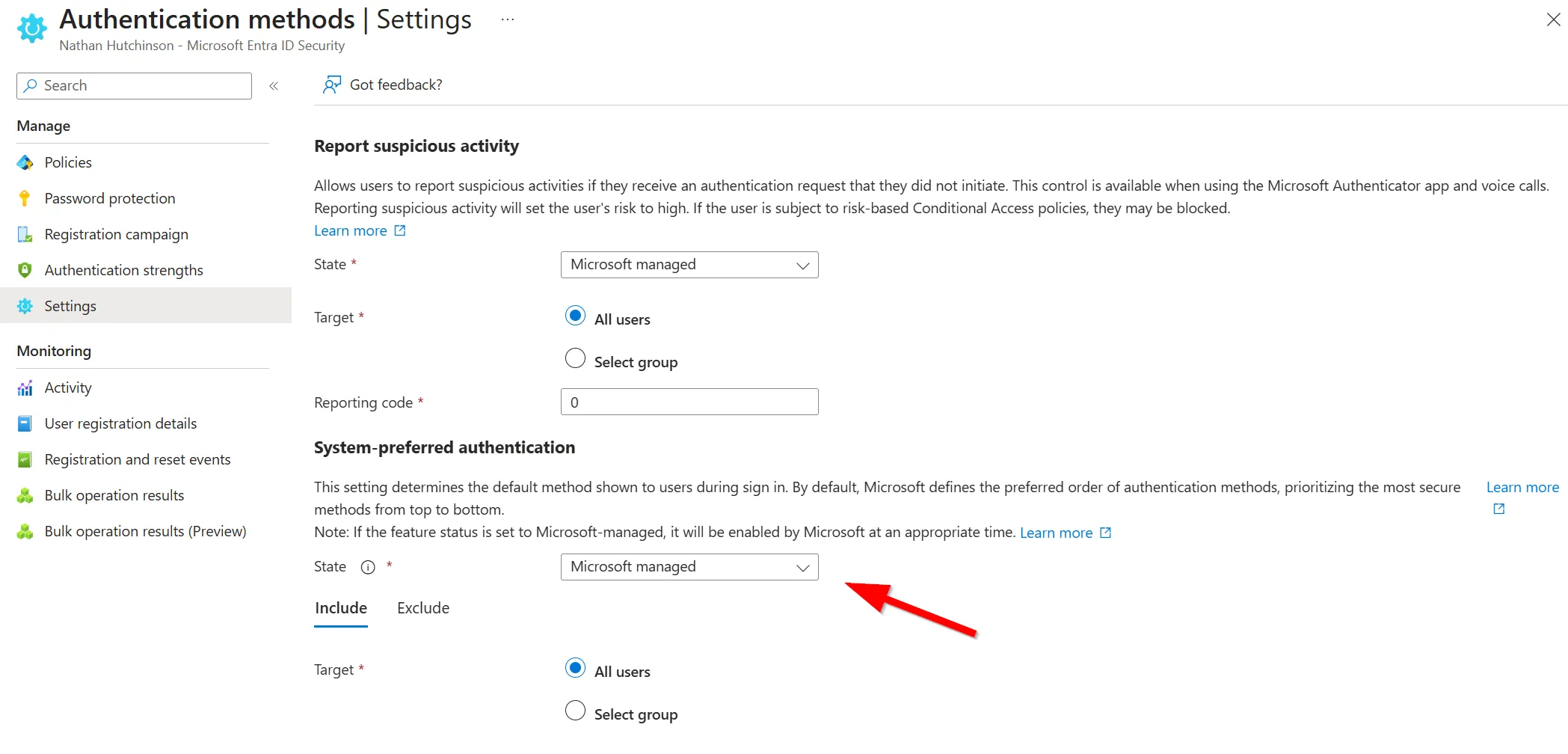
Confirm that System-Preferred MFA is set to Microsoft managed or Enabled under Authentication Methods → Settings in the Entra admin centre. As noted above, Microsoft managed currently defaults to Enabled, so most tenants won’t need to change
anything. If it’s explicitly Disabled in your tenant, consider enabling it - it’s what ensures Entra automatically prompts users with their strongest registered method.
Step 3: Build a Pilot Conditional Access Policy
Don’t enforce passkeys for everyone on day one. The right approach is:
- Create a pilot group (a small subset of IT-aware users, starting with yourself)
- Create a Conditional Access policy with an Authentication Strength requiring phishing-resistant MFA
- Scope it to the pilot group and all cloud apps (or a subset of apps to start)
Your phishing-resistant Authentication Strength should include:
- Passkey (FIDO2) - all allowed types
- Windows Hello for Business
- macOS Platform SSO
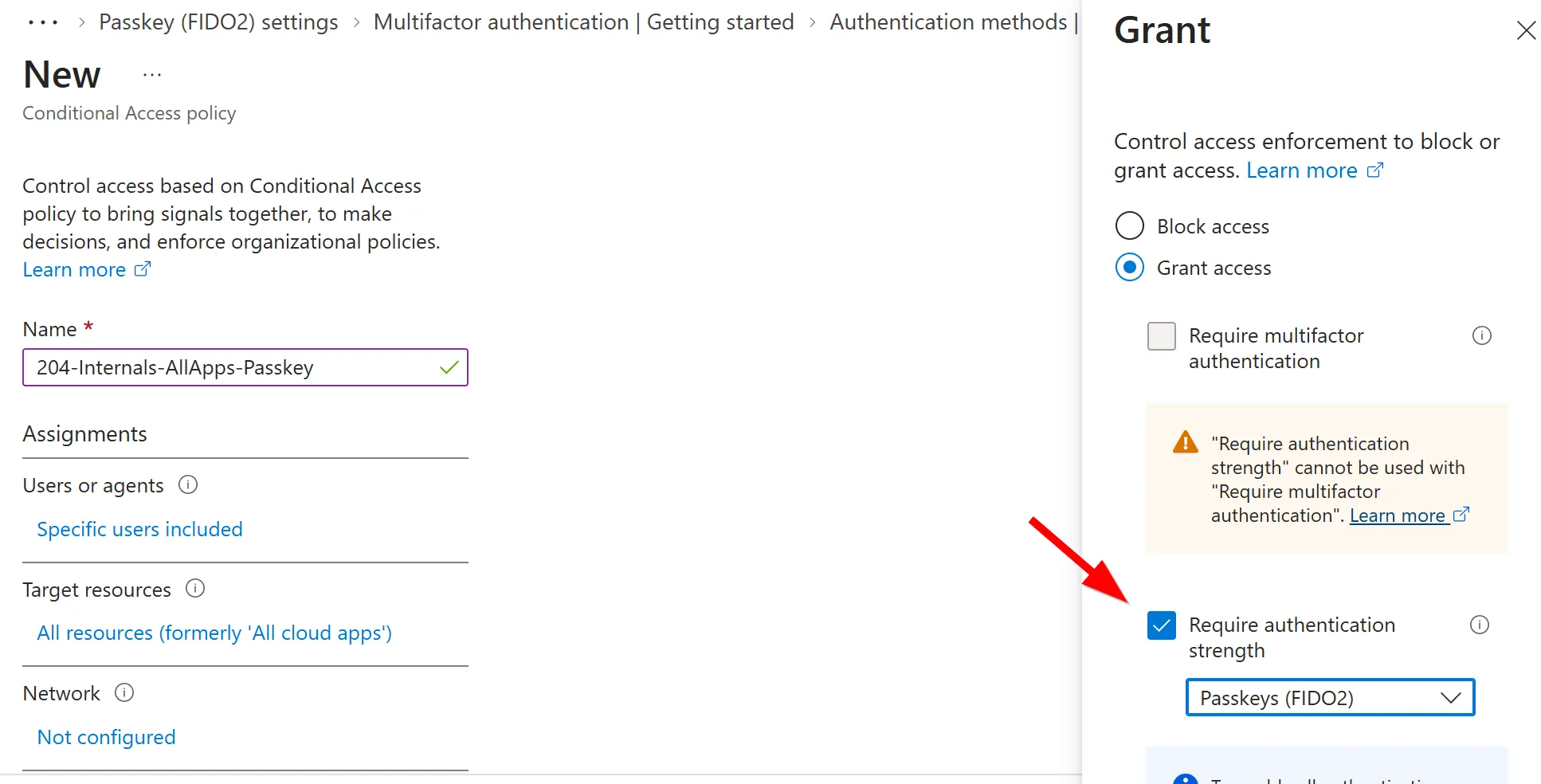
This is your “passkeys enforced” policy. Over time, you add more users to the pilot group as they get registered, and eventually you expand the scope to all users.
Step 4: Communicate and Enable User Registration
For users already using the Microsoft Authenticator app, registration is extremely straightforward:
- Open the Microsoft Authenticator app
- Select their corporate account
- Tap Create a Passkey
- Follow the prompts - the passkey is stored directly on their device
That’s it. No QR code, no browser flow, no additional apps. This is the lowest-friction path and is the recommended starting point for most users.
For users registering a synced passkey - once they’re added to the exemption group - the flow goes through aka.ms/mysecurityinfo → Add sign-in method → Passkey → Scan QR code → choose where to store it (iCloud Keychain, Google Password Manager, NordPass, etc.).
Note: If you have Intune App Protection Policies in place, there is an important caveat here. Certain CA configurations requiring App Protection Policies can inadvertently block passkey registration in the Authenticator app. Specifically, you need to ensure that Microsoft App Access Panel, AAD Reporting, and Azure Credential Configuration Endpoint are excluded from any App Protection Policy CA policy. If registration is failing silently or mid-way through the wizard, this is the first place to look. I wrote about this before in Conditional Access Gone Too Far: Navigating Zero Trust Edge Cases
Step 5: Monitor and Expand
Once the pilot group is running:
- Check Entra ID sign-in logs and filter by authentication method to see who is authenticating with passkeys
- Run Authentication Methods Activity reports to see who has registered a passkey and who hasn’t
- As users register passkeys, expand the CA policy scope - either by growing the pilot group, or by eventually switching the policy to target all users
- Once you’re confident the majority of the organisation is covered, remove the pilot group structure and let the policy run against everyone
The Elephant in the Room: Legacy Systems That Don’t Support Passkeys
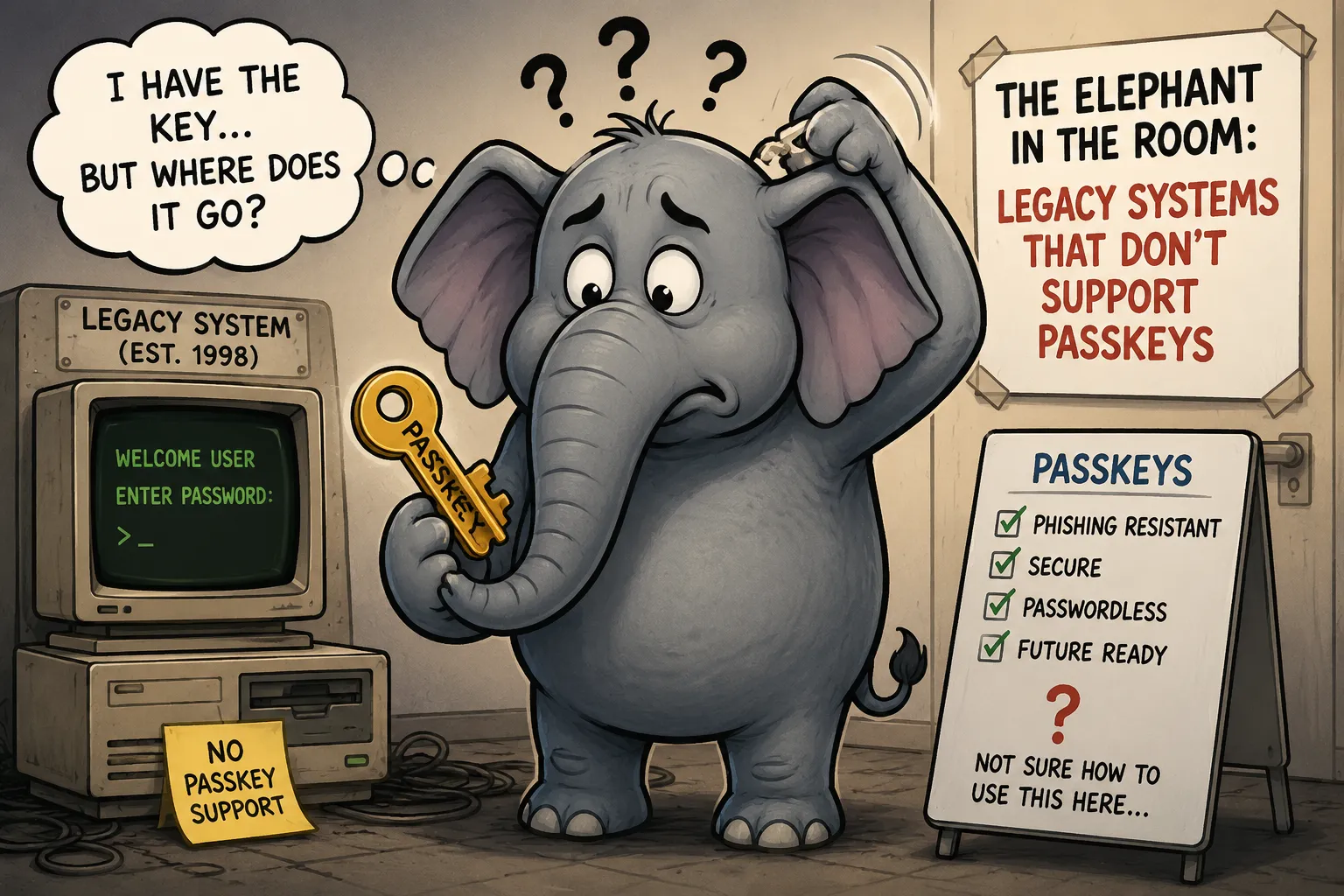
Here’s the honest part: not everything in your environment will support passkeys out of the box, and that’s fine.
One example I have seen before is Citrix/VPN gateway access via RADIUS. If your Citrix NetScaler or Remote Desktop Gateway is configured to use the Azure MFA Extension for NPS, it calls out to Azure MFA but operates completely outside of Entra Conditional Access. This means your CA policies - including your passkey enforcement policy - have no effect on that RADIUS authentication. The user can still satisfy MFA with a push notification, and your policy won’t catch it.
It’s worth noting that you can see RADIUS sign-in attempts in the Entra sign-in logs by filtering for a resource ID containing “radius” - but if you look at the Conditional Access tab for those entries, they’ll show as “Not applicable.” That tells you exactly what’s happening: Entra is aware of the authentication, but CA policy evaluation simply doesn’t apply to it.
I’ve written a full guide on setting up the Azure MFA Extension for VPN and Remote Desktop Gateway if you’re not already familiar with how that works.
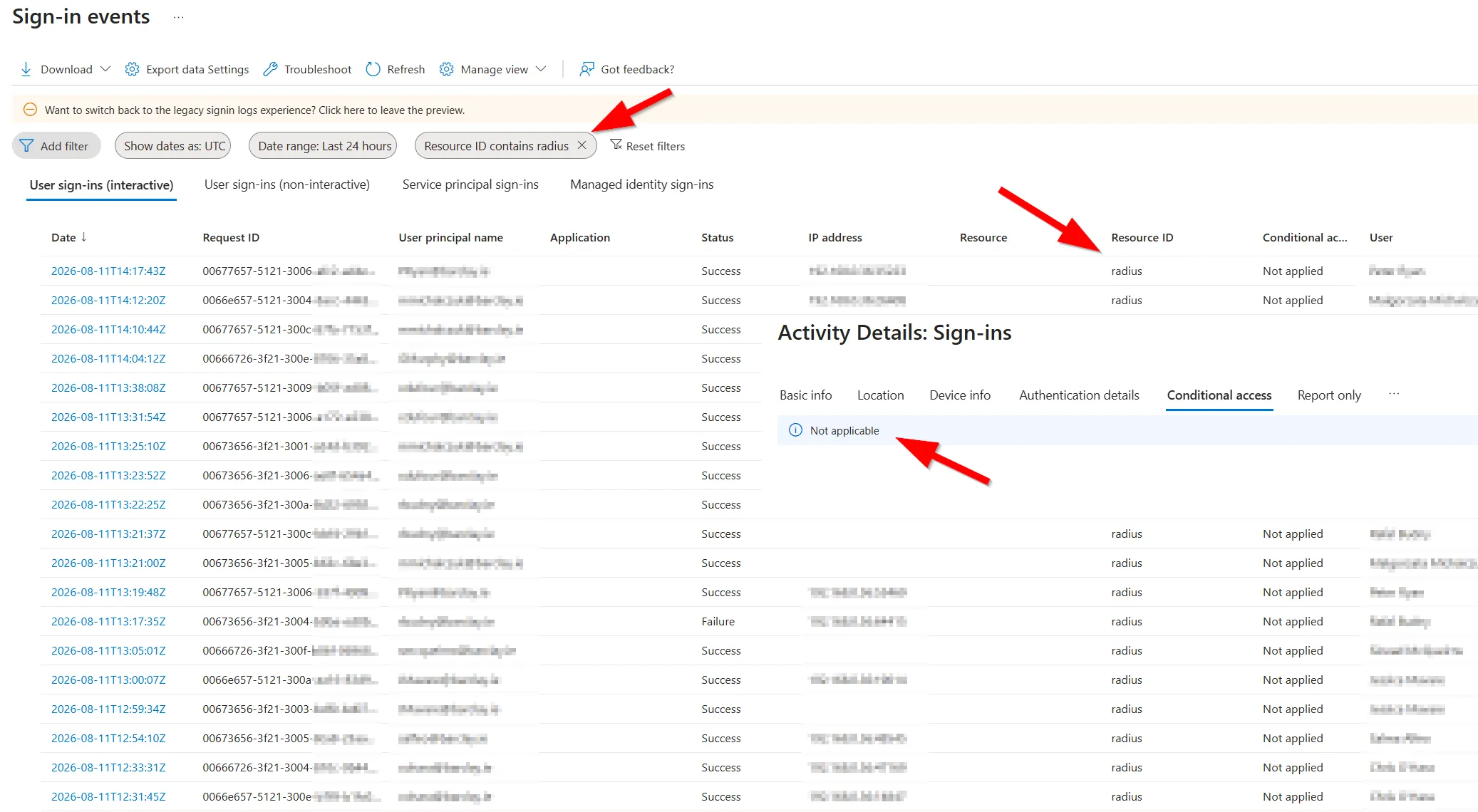
This isn’t a blocker - it’s a constraint to plan around:
- Don’t apply a passkey-only Authentication Strength to resources that users access through a RADIUS-authenticated gateway - you may lock them out for those sessions
- Check whether your gateway environment supports WebAuthN/modern auth passthrough - newer versions of Citrix Cloud and Citrix Workspace can authenticate directly against Entra, bypassing RADIUS entirely, which would bring those authentications back under CA policy control
- In the meantime, focus on enforcing passkeys for Entra-registered apps and browser-based access first
If your goal is to get phishing-resistant MFA in front of on-premises resources without going down the RADIUS route, it’s also worth looking at Microsoft Entra Private Access, which is part of the Global Secure Access suite. It lets you publish on-premises apps through Entra and enforce Conditional Access policies against them - including Authentication Strengths requiring passkeys - without needing a RADIUS intermediary. I’ve written a getting started guide for Microsoft Entra Private Access.
The goal isn’t to boil the ocean. It’s to progressively increase the proportion of authentications that are phishing-resistant. Every step forward matters.
Downgrade Attacks: A Risk Worth Knowing About
One thing that often surprises people when they first encounter this topic: System-Preferred MFA doesn’t prevent users from choosing a weaker method at sign-in. It just defaults to the strongest method available.
This means if you have passkeys as the preferred method but are still allowing push notifications in your Authentication Strength (because some apps need it), a user - or an attacker acting on behalf of a user - can click “Sign in another way” and drop back to push notifications. This is a downgrade attack.
If you want to truly enforce phishing-resistant authentication with no fallback for a specific resource, you need to:
- Create an Authentication Strength that only includes passkeys, Windows Hello for Business, and macOS Platform SSO - no push, no OTP, no SMS
- Apply that strength via a Conditional Access policy scoped to that specific resource
For general users, this is currently hard to do universally if some parts of your environment don’t support passkeys yet. For admin accounts and sensitive resources, it’s the right target state.
Summary
Passkeys are no longer a future consideration - they’re here, they’re supported, and Microsoft is pushing them as the default. The good news is you don’t need a perfect environment or a big-bang migration to get started. Here’s the approach in brief:
| Step | Action |
|---|---|
| 1 | Create a default device-bound passkey profile (attestation on) for all users |
| 2 | Create a synced passkey profile (attestation off) for an opt-in exemption group |
| 3 | Confirm System-Preferred MFA is enabled |
| 4 | Create a phishing-resistant Authentication Strength (passkeys + WHfB + Platform SSO) |
| 5 | Pilot via Conditional Access scoped to a small group |
| 6 | Communicate to users - create a passkey via the Authenticator app |
| 7 | Monitor registration via Activity reports |
| 8 | Expand CA policy scope as users onboard |
| 9 | Plan RADIUS/legacy app migration in the background |
The journey from SMS to phishing-resistant MFA doesn’t have to be painful. Start with the Authenticator app, get your pilot group running, and build from there.
If you’re already running a passkey pilot and have questions or edge cases to share - particularly around virtualised environments, Authentication Strength design, or the synced vs device-bound debate - I’d love to hear about it in the comments.


